Use recruiting reports
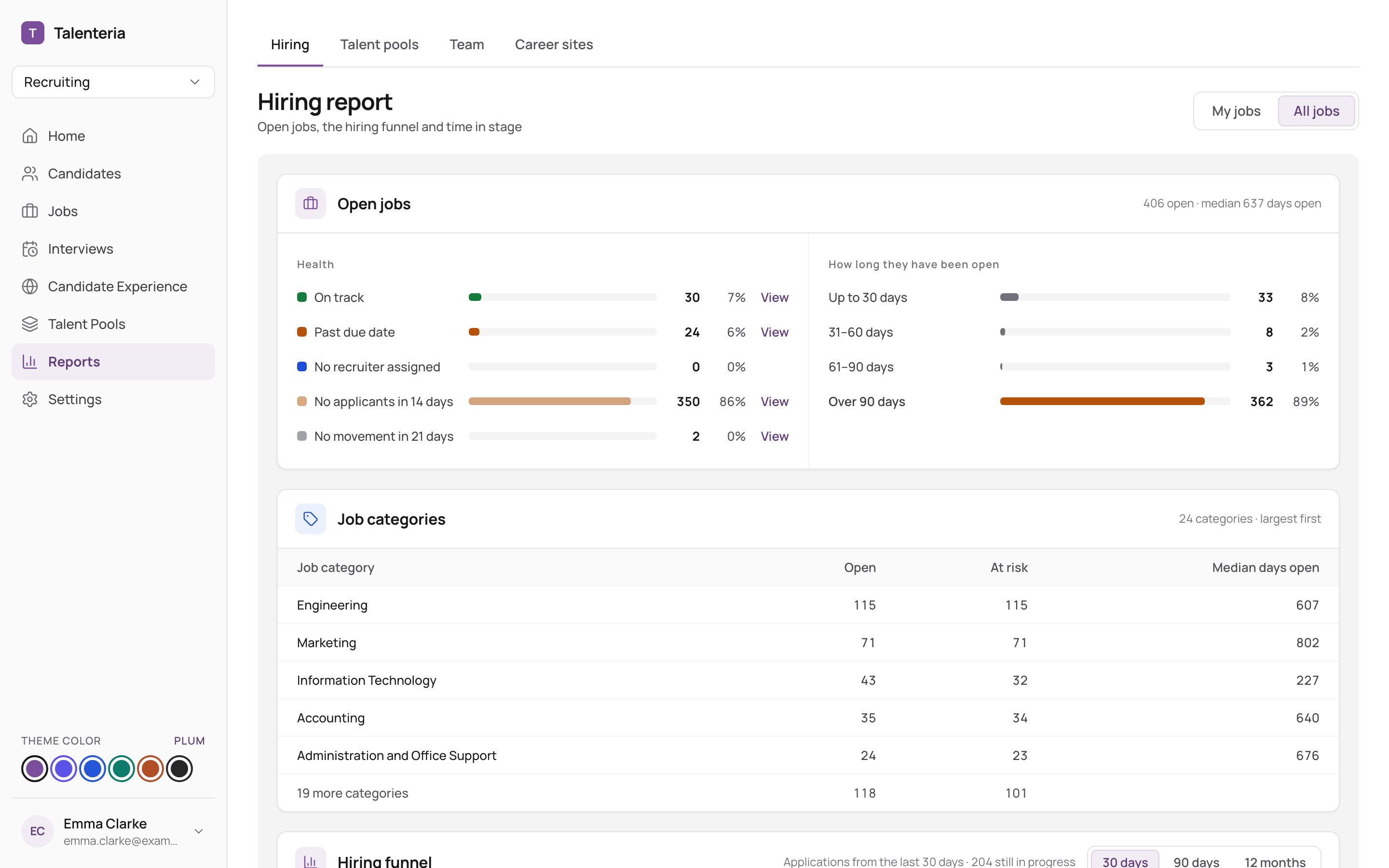
Click Reports in the sidebar. The Hiring tab opens. You can also get here from Hiring report → and Talent pools report → on Home.
Find jobs that need attention
- On Hiring, choose My jobs or All jobs (Administrators and Users).
- Under Open jobs, look at the health rows: Past due date, No recruiter assigned, No applicants in 14 days, No movement in 21 days and On track.
- Click View on a row. Job Openings opens with only those jobs. Click Show all job openings to clear it.
Read the hiring funnel
- Under Hiring funnel, choose 30 days, 90 days or 12 months.
- Each stage shows how many applications reached it and the share of the stage before. A big drop shows where candidates fall out.
- Rejected: N after … shows at which stage people were turned down.
See who waits too long
Under Time in stage, look at Waiting now and Longest wait for each status. To see who is Over goal, set goals on your candidate statuses first; see Set up candidate fields, statuses and document types.
Check your talent pools
On the Talent pools tab, see your pools' members by match level, new members, how often pools led to applications and hires, and To look at: pools that stopped growing or have no open job. Click a pool name to open it.
Administrators can download the month's AI Matching role corrections with Download CSV.
See career site traffic
On Career sites (Administrators and Users), choose the Period (This Week by default, or Custom with Start Date and End Date). Use the arrows to step to the previous or next period.
If the tab says it shows sample data, an Administrator can click Switch to real data. Each site needs Google Analytics connected; see Connect Google Analytics.
Exact counting rules: What each report measures.