Review AI match scores and the reasons behind them
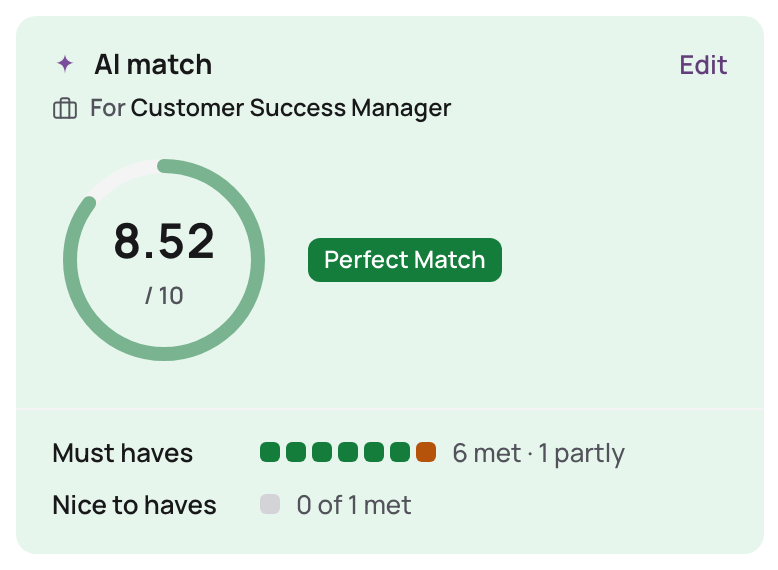
Where you see the score
- In candidate lists and on the job's Candidates tab: the score out of 10 with its match level.
- On the candidate's page: the AI match panel, and the AI profile tab with the full breakdown.
The score's colour follows its match level: Perfect Match green, Good Match blue, Minimal Match amber, No Match grey.
Read the breakdown
- Open the candidate.
- The AI match panel sums it up by importance, for example "Must haves: 2 met · 3 partly". Hover over or click a criterion's info icon to see its importance and the reason.
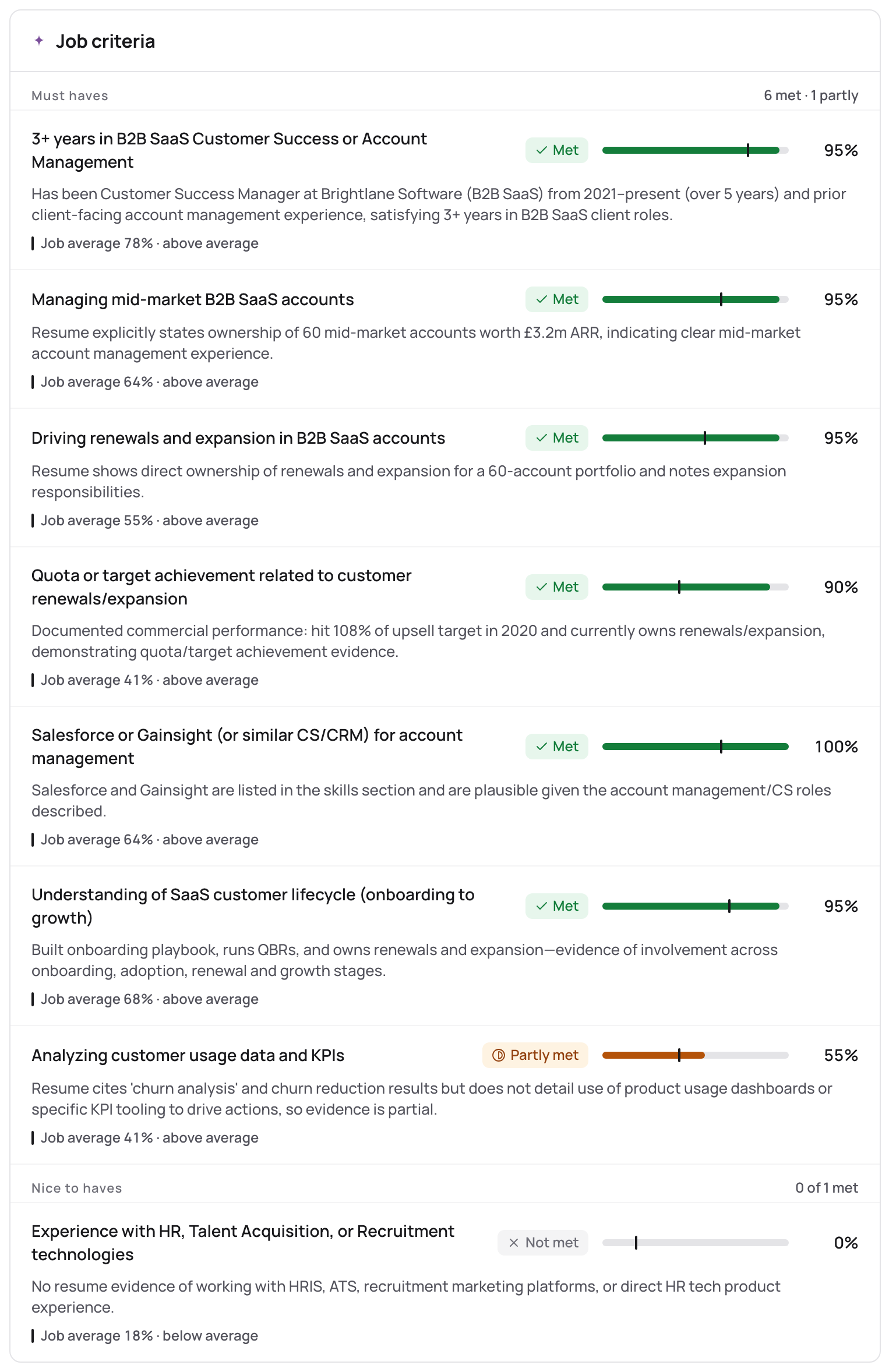
- Open the AI profile tab. Under Job criteria (or Talent pool criteria), criteria are grouped by importance, Must haves first. Each shows:
- Met (70% or more, green), Partly met (30% to 69%, amber) or Not met (grey);
- its percentage and bar;
- AI's reason, in words.
- Below, check the Screening questions: each answer with its rating.
Knockouts
Next to the AI match you may see:
- Knocked out: a knockout question the candidate failed;
- Check: a knockout answer that wasn't found, for example in a resume you uploaded: check it yourself;
- Knock-out question(s) passed.
A knockout doesn't change the score or status. You decide.
Override the score
If you know something the AI doesn't:
- Click Edit next to the AI match.
- Enter the Score, choose the AI Match Level and explain why in Notes (required).
- Click Update.
The score is marked Manually edited, and it stays as you set it.
Act on it
From the candidate's page: move them to the next stage, Reject, Send message, Schedule interview, or Link to job / talent pool. To see several candidates' breakdowns next to each other, compare them.