Create and manage a talent pool
Create a pool
Administrators can create pools.
-
Go to Talent Pools and click New talent pool (or New talent pool in Quick actions on Home).
-
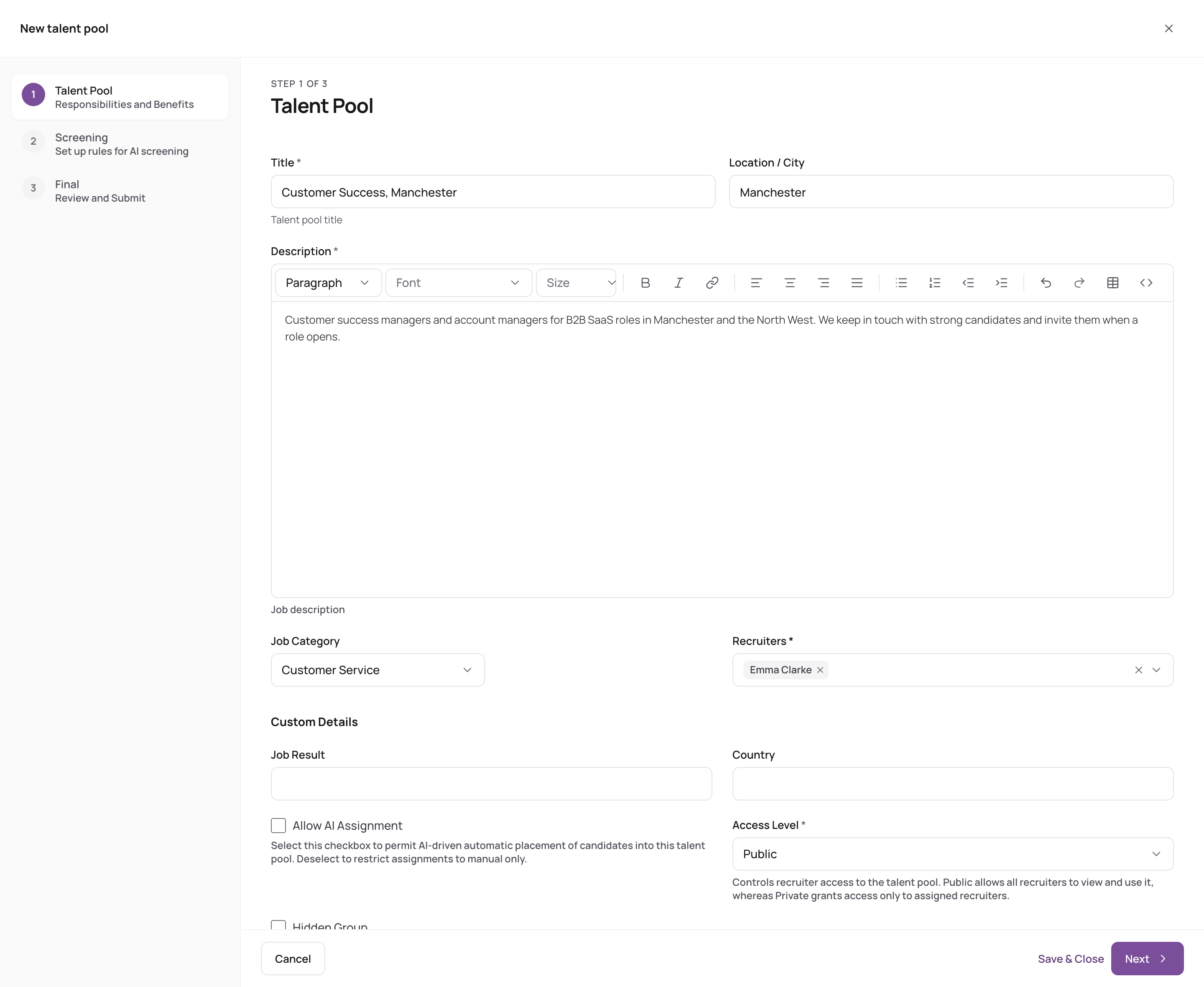
Talent Pool step:
- Title (required, different from your other pools) and Location.
- Description (required). If AI will score members, write it like a job description: AI reads it as the job.
- Job Category and Recruiters (at least one).
- Under Custom Details: your own pool fields, Allow AI Assignment, Hidden Group and Publish On Career Site. See What talent pools are.
-
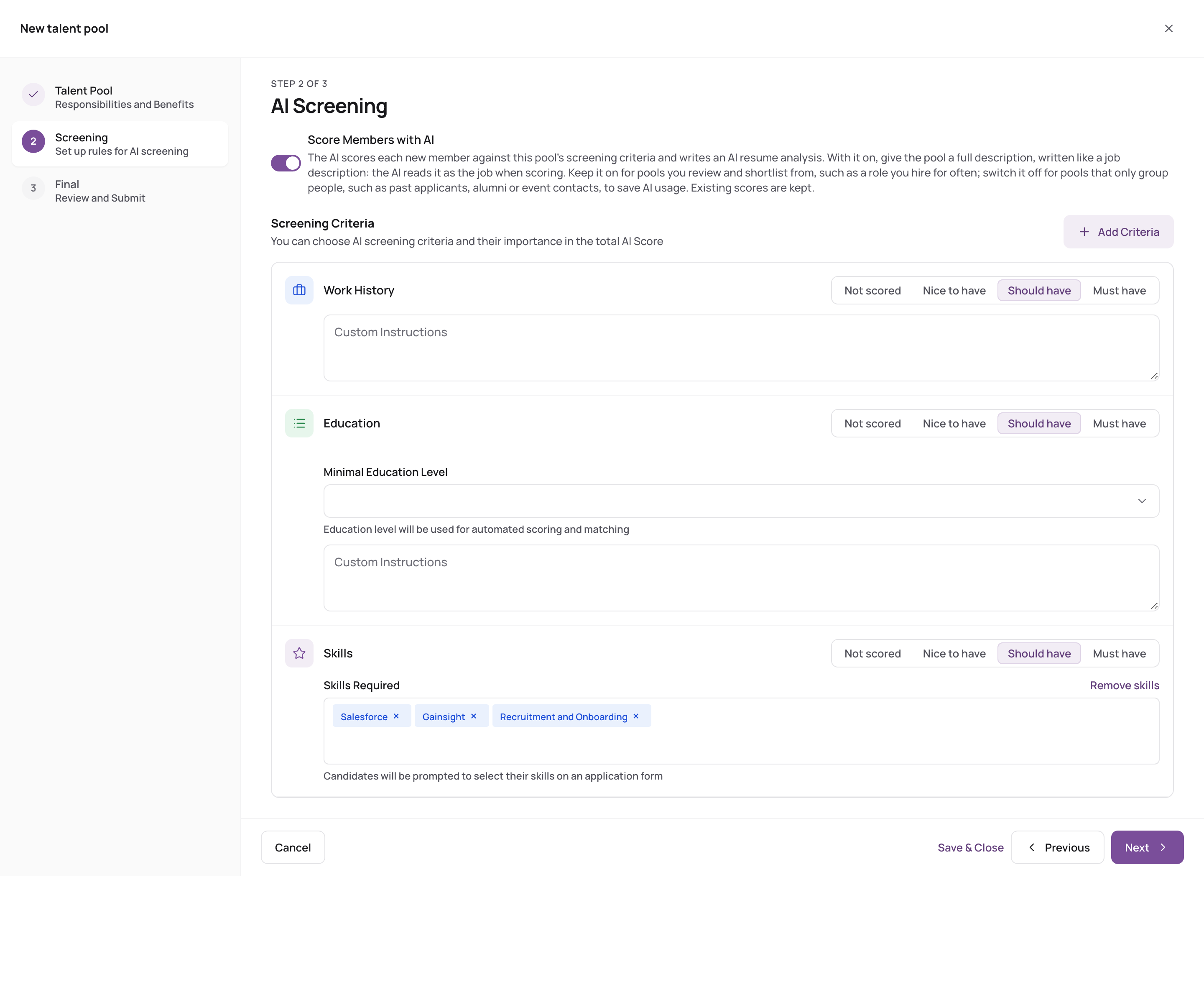
Click Next. AI Screening step:
- Keep Score Members with AI on to score members, or switch it off for pools that only group people.
- Set the criteria as for a job: Work History, Education (with Minimal Education Level), Skills (with Skills Required) and custom criteria, each Must have, Should have (default), Nice to have or Not scored. See Set screening criteria.
-
Click Next, check the summary and click Submit.
Edit a pool
Open the pool and click Edit, or choose Edit in its row menu on the Talent Pools page. Change what you need and click Save & Close.
Copy a pool
Choose Copy in the pool's row menu. You get "title - copy" with the same recruiters, skills and screening criteria, without members.
Delete a pool
Choose Delete in the pool's row menu and confirm. All memberships in the pool are removed, with their documents and reference checks. The candidates themselves stay in your candidate database. This can't be undone.
Find pools
On Talent Pools:
- search by name, filter by category (All categories) or With candidates only;
- sort by Most candidates, Newest or A–Z;
- switch between List and Cards.
Each pool shows its category, location, whether it's on the career site, and how many candidates it has.