Set screening criteria and questions for a job
Screening criteria decide how AI scores each candidate for this job. Screening questions are asked on the application form and rated by AI.
- Create a job, or open one and click Edit.
- Go to step 3, AI Screening. It has two tabs: Screening Criteria and Screening Questions.
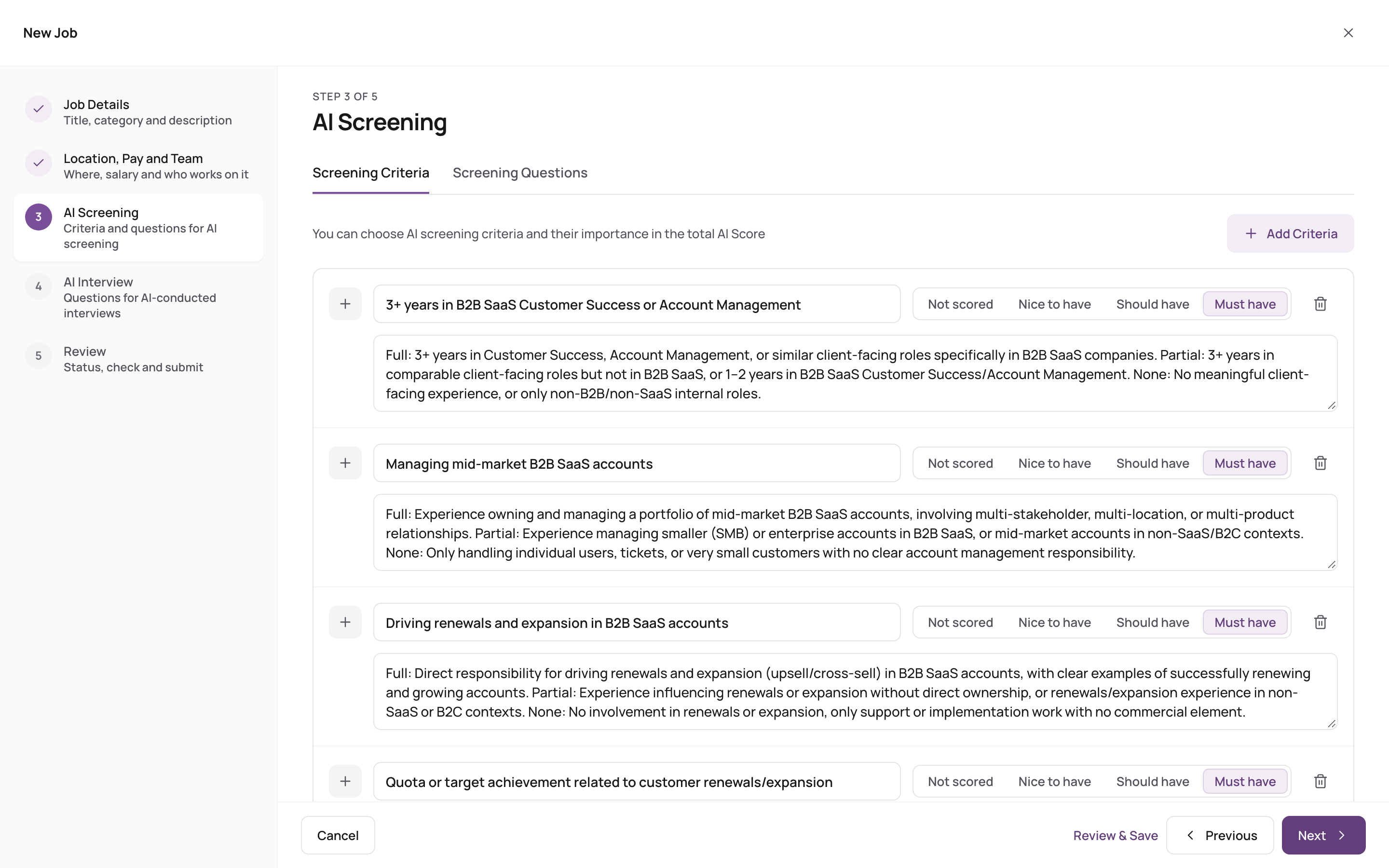
Add and weigh criteria
On Screening Criteria:
- Click Add Criteria and choose:
- Experience: the candidate's work history.
- Education: also set the minimum Education Level. A candidate whose highest degree is below it scores 0 on Education.
- Skills: the job's required skills (see below).
- Custom Criteria: anything else. Enter a Criteria Name (required). You can add up to 10.
- For each criterion, set how important it is:
- Must have (weight 3)
- Should have (weight 2, the default for criteria you add)
- Nice to have (weight 1)
- Not scored (weight 0): kept on the job, but left out of the score.
- Optionally write Custom Instructions: tell AI what to look for, for example "At least 3 years leading a team of 5 or more".
- To remove a criterion, click its bin icon.
AI suggests criteria when you first reach this step. Suggested criteria AI considers required come in as Must have, the others as Nice to have. Change or remove them as you like.
How the weights combine into the 0-10 score: How the match score is calculated.
Set required skills
Under Required skills, type to add skills, or click Clear skills to start again. Skills AI suggested are marked Suggested by AI.
Required skills are used for AI Matching, job alerts and the skills found on candidates' resumes, even when Skills isn't scored. To make them count in the score, add the Skills criterion (or click Add to AI Score). With Skills scored:
- the job needs at least one required skill;
- the application form asks candidates to select their skills.
See How skills are found in a resume and matched to the job.
Add screening questions
On Screening Questions:
- Click Add Question.
- Write the Question (required).
- Optionally write the Expected Answer. AI rates the candidate's answer against it.
- Tick Knockout if the question is a hard requirement, for example a work permit or a licence.
- To remove a question, click its bin icon.
Candidates answer the questions on the application form. For candidates you add yourself or who are added by email, AI looks for the answer in the resume.
A candidate who fails a knockout question is marked Knocked out; one whose answer needs a look is marked Check. Knockouts never change a candidate's status: you decide. Candidates never see the expected answers or which questions are knockouts.
Save
Click Next to continue, or go to Review and click Submit (Save & Close when editing).