Create and send a job offer
Nothing is saved until you save a draft or send the offer.
Start
Any of these opens New job offer:
- On the candidate's page: Actions › Create job offer.
- On Home: Send job offer in Quick actions, or Send offer next to a candidate an employer approved.
- On Candidate Experience › Job offers: New job offer.
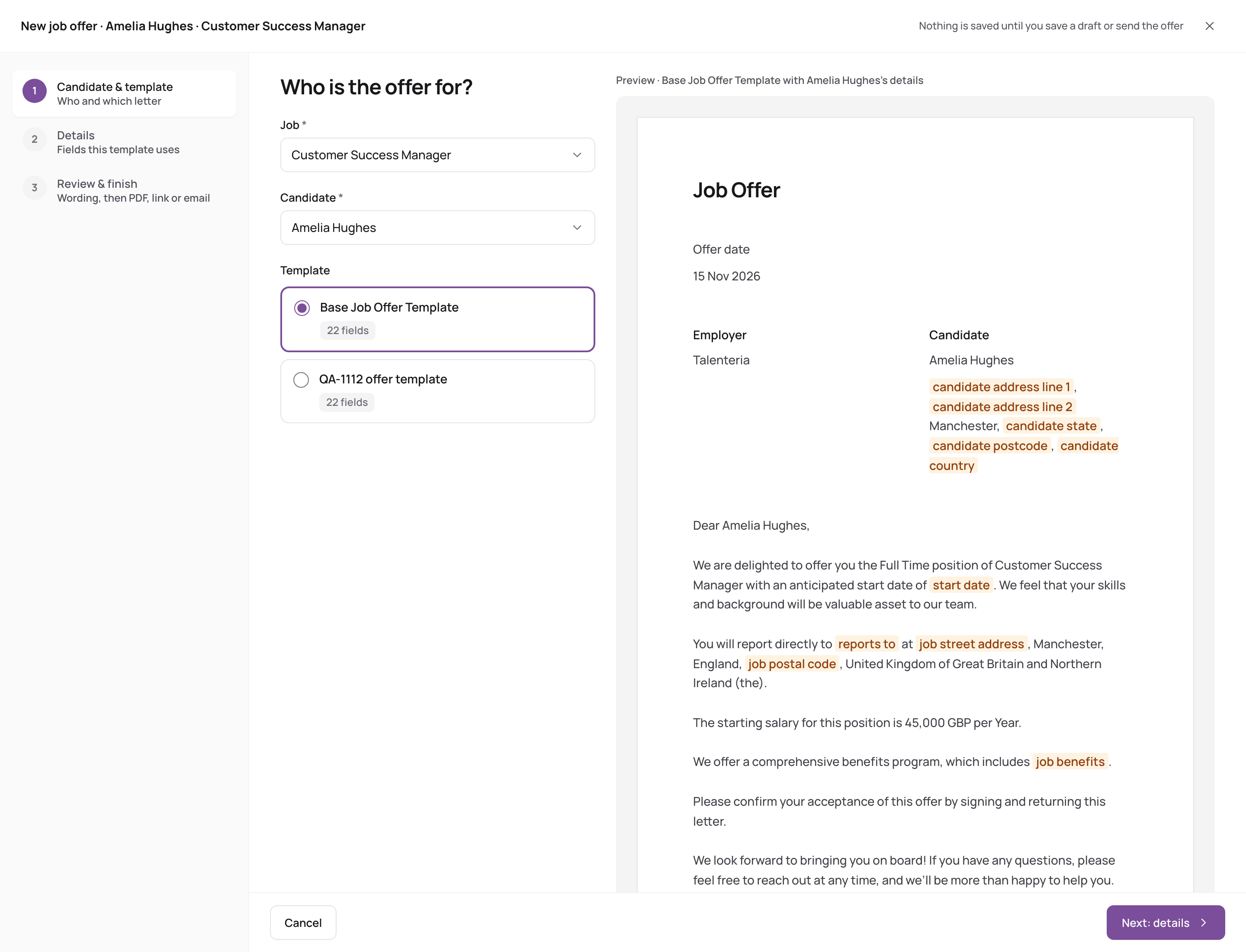
1. Candidate & template
- Choose the Job and the Candidate. Only candidates who applied to that job (and weren't rejected) are listed.
- Choose the Template. The default for the job's client, or your company default, is selected. The preview shows the letter.
- Click Next: details.
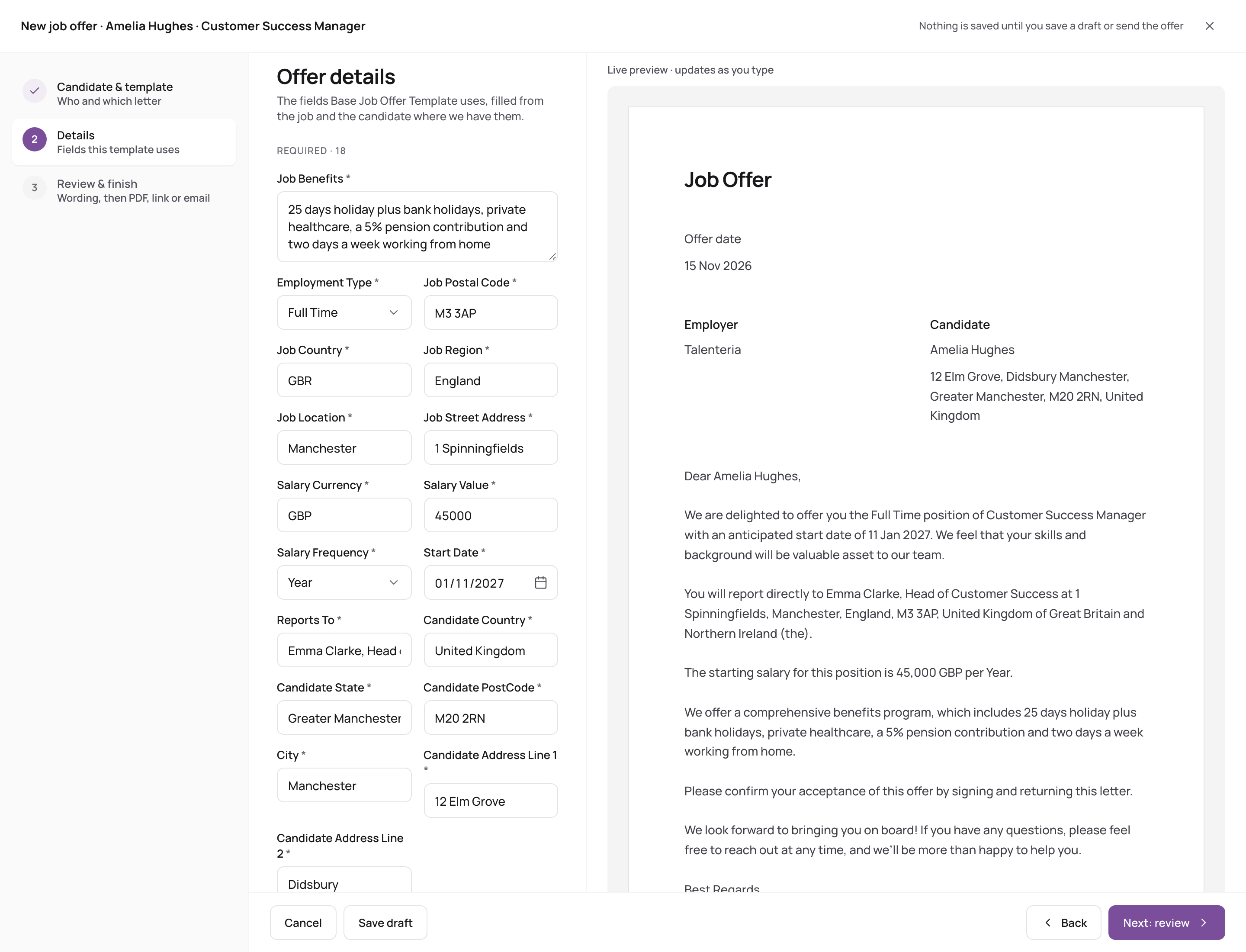
2. Details
- Fill in the Required fields, for example the start date. Values from the job and the candidate are filled in already; change them if needed.
- Fill in the Optional fields you want. While one is empty, its sentence is left out of the letter.
- Watch the Live preview as you type.
- Click Next: review, or Save draft to finish later.
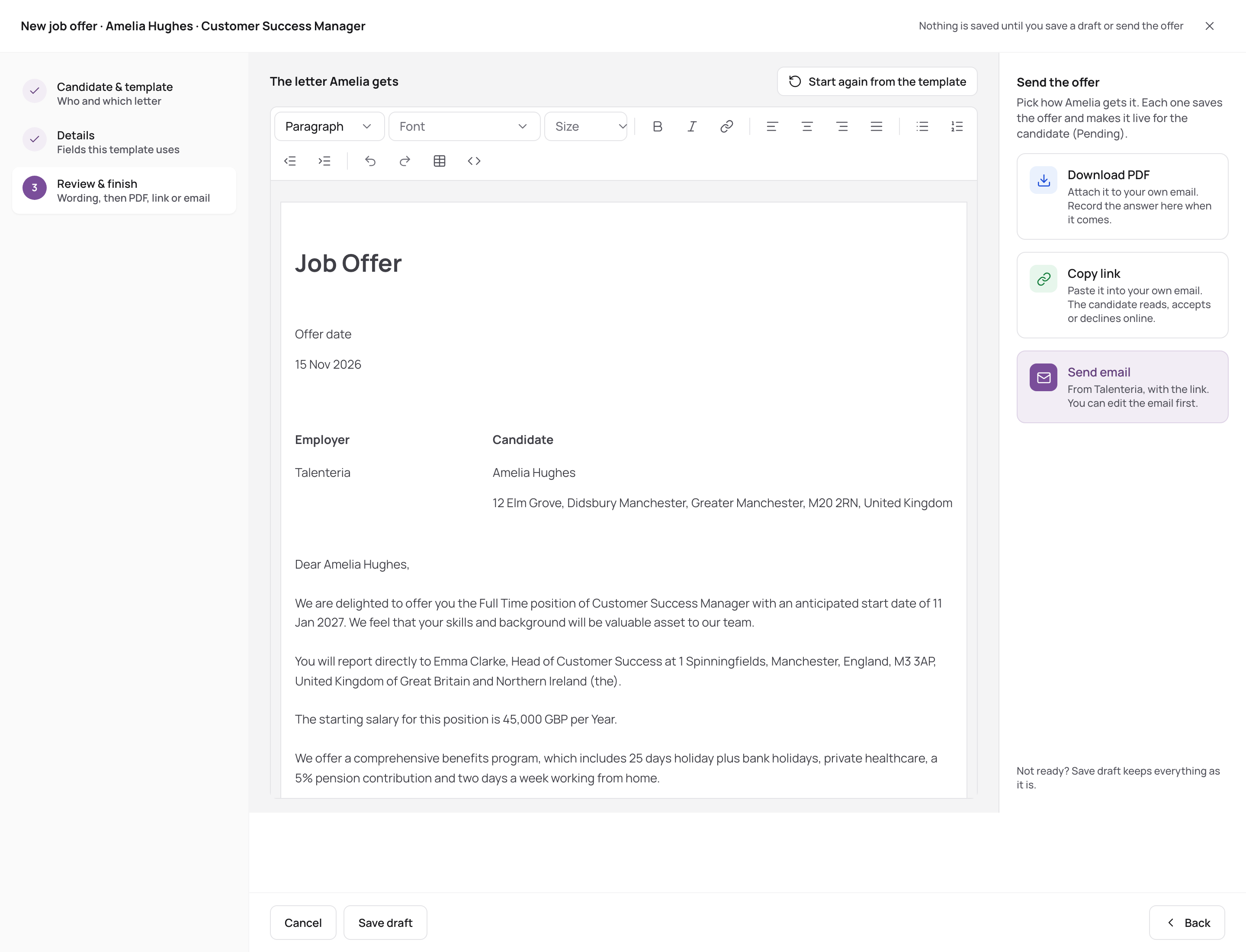
3. Review & finish
- Read The letter name gets. You can reword it here for this candidate. Start again from the template undoes your wording changes.
- Choose how to send it:
- Download PDF: attach it to your own email. Record the answer when it comes.
- Copy link: paste it into your own email. The candidate reads, accepts or declines online.
- Send email: Talenteria emails it with the link. Edit the email in Email the offer and click Send.
- Click Done.
The offer is now Pending. Sending doesn't change the candidate's status; move them to your Offer stage if you use one.
"There is no link for this offer"
Links and emails work only for candidates who applied through your career site. For a candidate you added yourself, use Download PDF and send it by email.
Related reading
- The job offer flow and its statuses
- View, accept or decline an offer (what the candidate sees)