Create and publish a career site
A trial account already has a career site, set up for you. To make another one, or if you have none, create it with the wizard. Only Administrators can create sites.
Create a site
- Go to Candidate Experience › Career sites and click New site.
- Basics:
- Site name (required): shown in the site's header and the browser tab.
- Web address (required): letters, numbers and hyphens, for example
careers-acme. - Description: for your team, in the sites list.
- Brand: logo, accent colour, corners and font. See Brand your career site.
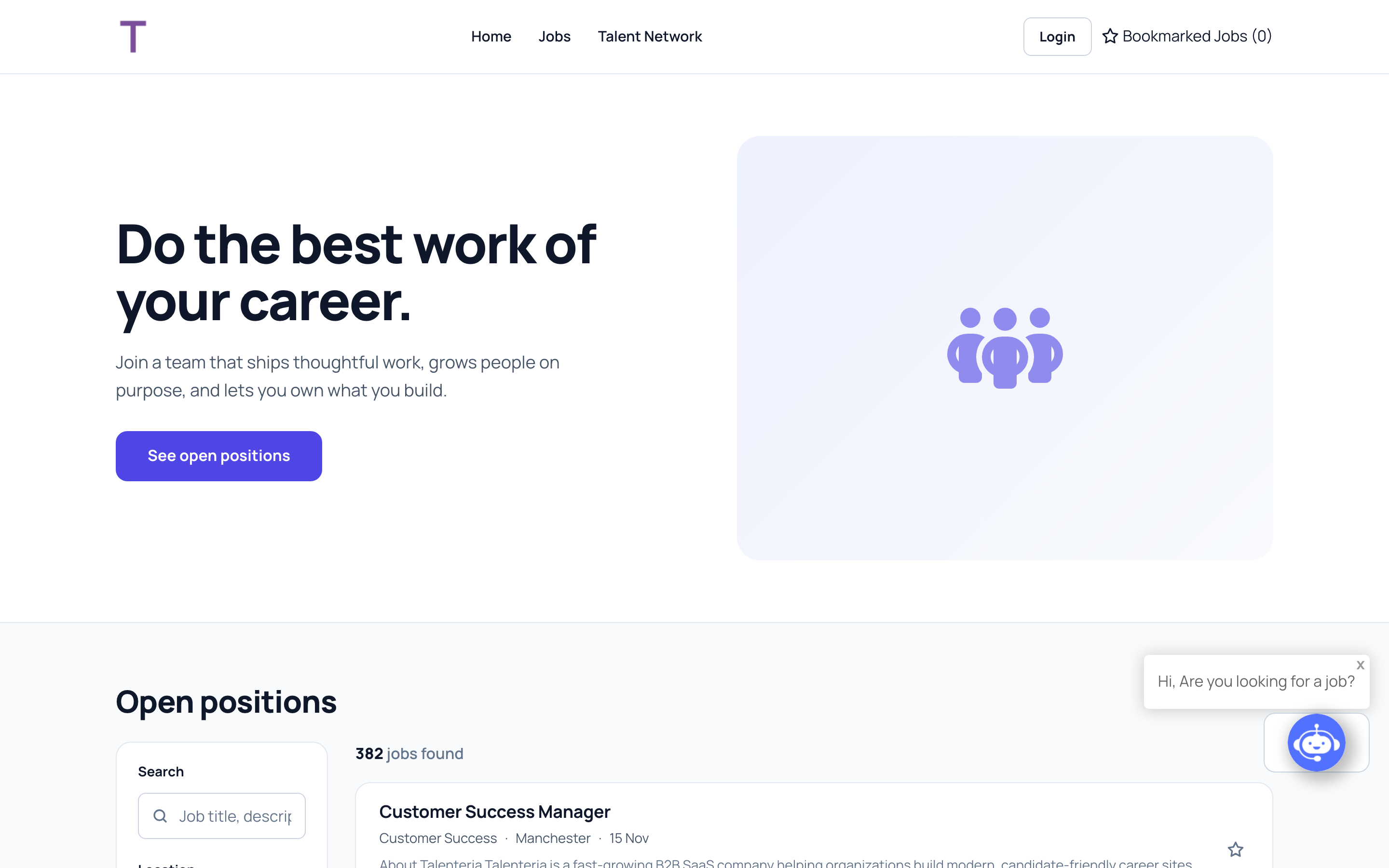
- Home page:
- Headline (up to 70 characters) and Intro (up to 200).
- Picture: the template's illustration or your own photo (a team photo at least 1200 px wide works best).
- Portals: Talent Network, Candidate Portal, Employer Portal. A portal you switch off is left out: its pages and menu items aren't created.
- Check the Preview at Desktop and Phone width.
- Review, then click Create site.
The site is created and published. The phone, address, email and social links in the footer come from Settings › System settings; see Add company details.
To start from an existing site instead, choose Copy in its menu on the Career sites page.
Make your jobs public
- Open the site with Manage site and go to Settings.
- Under Access, set Job page access to Public (and Talent pool page access, if you want pools public).
- Save.
A trial site starts at Administrators and Recruiters: until you change it, only your team sees the jobs.
Publish changes
Changes to pages and to job and pool page templates are drafts. Use Preview to check them, then click Publish in the site's header. Settings, layout and CSS changes apply straight away.
Change the site's details
On Settings › Site details: Title, Description, URL, External URL and Logo URL. Click Update details.
The External URL is for your own domain. Contact Talenteria support to set the domain up first; see How a career site is built.
Delete a site
On Career sites, choose Delete in the site's menu and confirm. This can't be undone.