Schedule an interview
Use this when you choose the time. To let the candidate choose, see Let candidates book a time; for an AI interview, see Create an AI interview.
Open the scheduler
Any of these opens Schedule Interview:
- On the candidate's page, click Schedule interview.
- In a candidate list, tick one or more candidates and choose Bulk actions › Schedule interview.
- On Home, click Schedule interview in Quick actions.
- On Interviews, click Schedule interview.
Step 1: Details
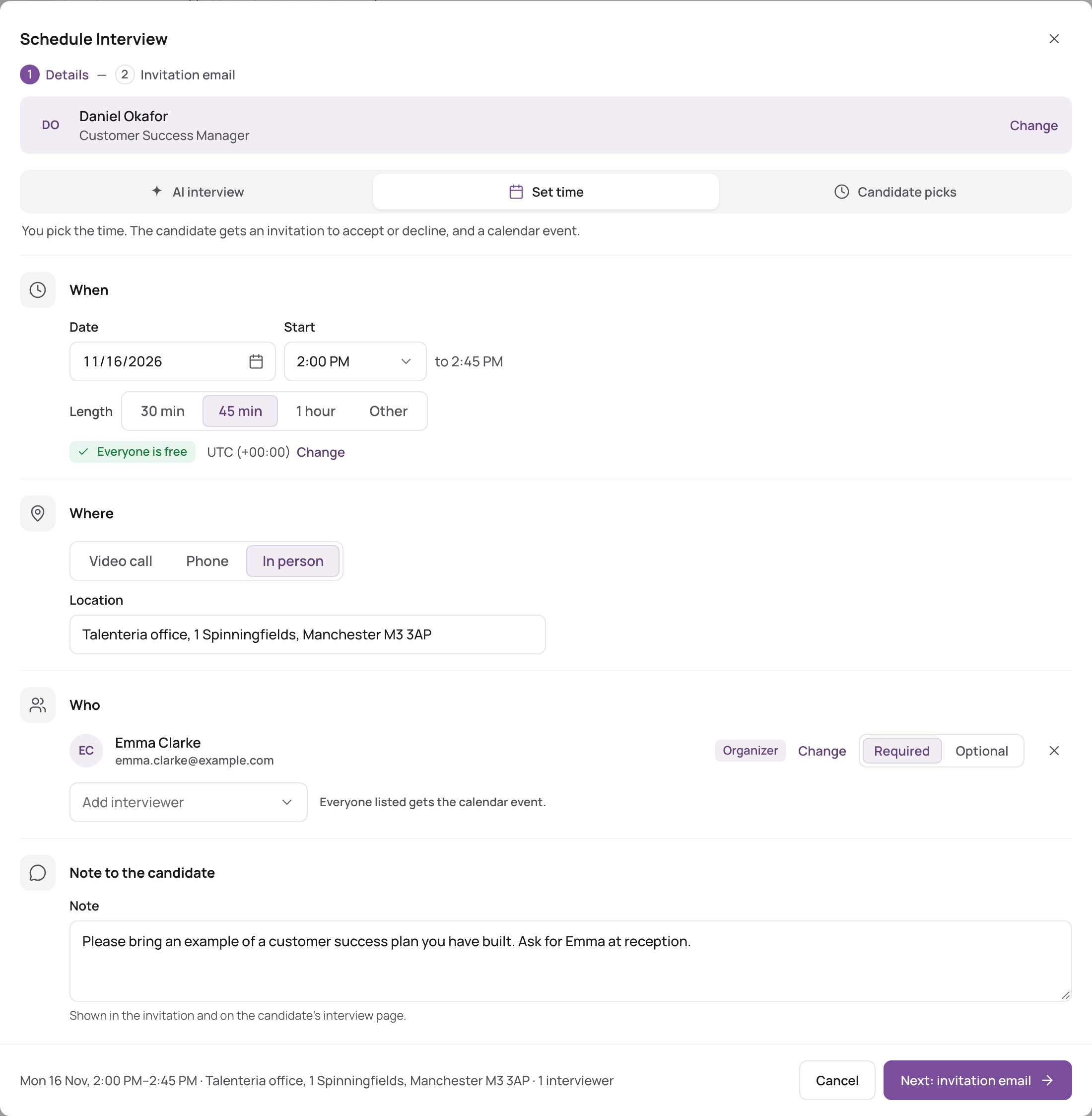
- Who it's for. If you started from a candidate, their name and job are shown (click Change to pick others). Otherwise choose the Job and one or more Candidates.
- How: choose Set time.
- When:
- Choose the Date and Start time. By default: the next working day at 10:00.
- Choose the Length: 30 min, 45 min, 1 hour (default) or Other to set the End time.
- The time zone is shown below; click Change to use another.
- Where:
- Video call: pick Zoom, MS Teams, Google Meet (the meeting link is created for you) or Other video conference (paste the Meeting link).
- Phone: enter the Phone number.
- In person: enter the Location, an address or room.
- Who: you are the Organizer (click Change to make someone else the organizer). Click Add interviewer to add colleagues and set each one to Required or Optional. At least one interviewer must be required. Everyone listed gets the calendar event.
- Optionally click Add a note for the candidate. It is shown in the invitation and on the candidate's interview page.
- Click Next: invitation email.
Is everyone free?
When Microsoft 365 or Google Workspace is connected, a line under the time shows Everyone is free or Busy then: with the names of whoever has something in their calendar. It updates as you change the time or the interviewers.
Why a video option is greyed out
| Option | Needs |
|---|---|
| Zoom | Your company's Zoom integration, and the organizer's Zoom account email in their profile. |
| MS Teams | Microsoft 365 connected in Settings › Email, with calendar events allowed, and a Microsoft 365 mailbox for the organizer. |
| Google Meet | Google Workspace connected in Settings › Email, with sending from Google Workspace mailboxes and calendar events allowed, and a Google Workspace mailbox for the organizer. |
The reason is shown under the greyed option. See Connect an integration and Set up email sending.
Step 2: Invitation email
- Check the recipients and the Subject and text. Use Insert field to add details such as the date or job. If you remove the link to accept or decline, Talenteria adds it back at the end.
- Click Schedule and send, or Save without sending to schedule without emailing the candidate.
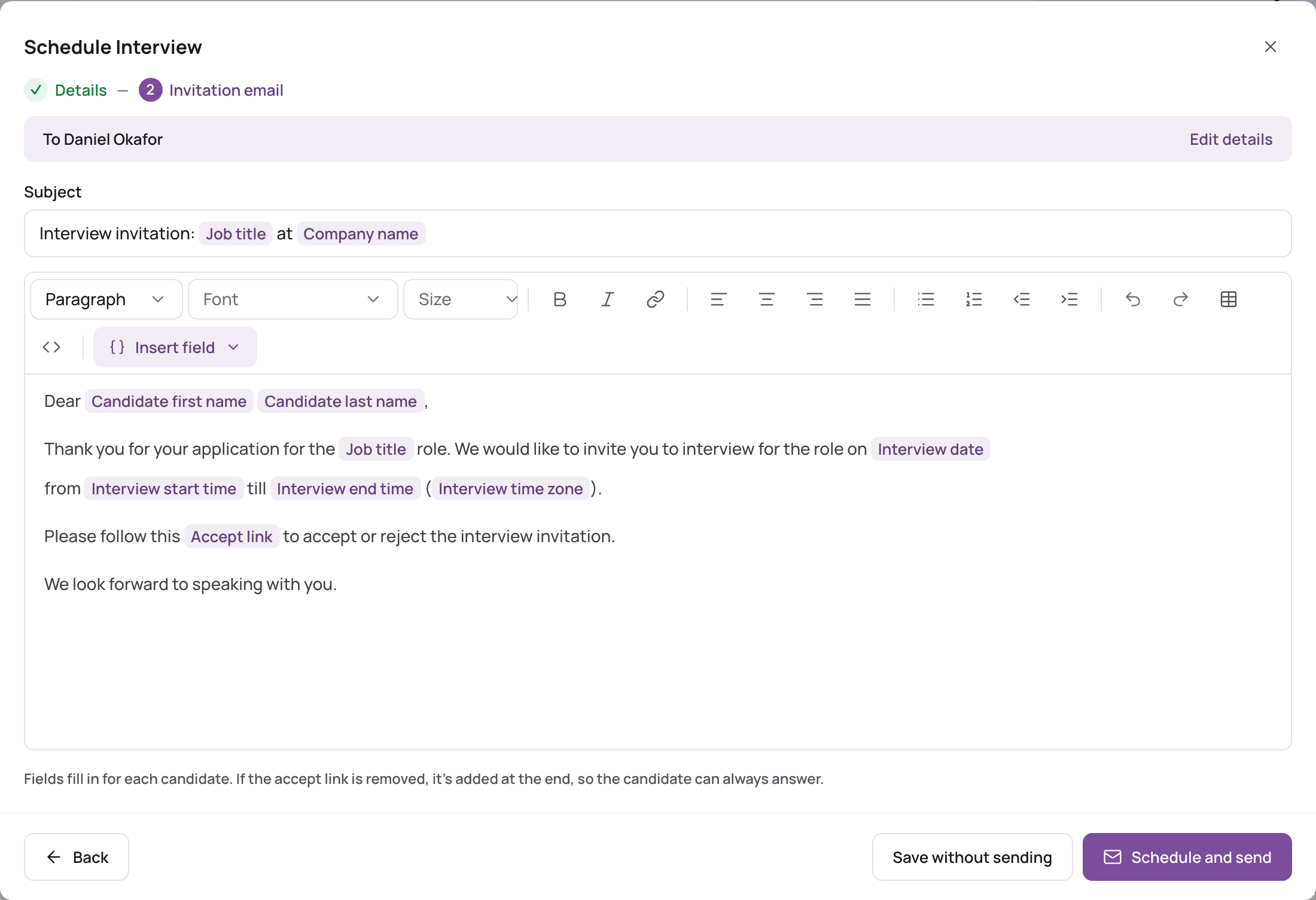
The candidate gets the invitation with a link to Accept or decline the interview. The interviewers get a calendar event: with a connected mailbox, it's a real Outlook or Google Calendar event sent from the organizer's mailbox, with the Teams or Meet link.
If the invitation template is turned off in Settings › Email › Templates, the email goes out only when you send it from here.
Change, cancel or delete an interview
On Interviews, open the interview's menu:
- Edit: change the time, place or interviewers and click Update. Moving a Teams or Zoom interview moves its meeting too. The kind of interview (Set time, Candidate picks, AI) can't be changed.
- Cancel interview: the interview moves to Cancelled, and the candidate and interviewers get a cancellation email. Teams and Zoom meetings are removed.
- Delete: removes the interview for good, without emailing anyone. This can't be undone.
After the interview
- Evaluate: give a Rating and Comments. Interviews waiting for this are under Pending feedback.
- Mark Complete: optionally set the candidate's next status, and choose whether to send them a message with the results.
The Interviews page
- Dashboard: next interviews, interviews pending feedback, and the latest AI interview results.
- List: filter by status (Upcoming, AI invites, Incomplete, Pending feedback, Completed, Cancelled) and by type.
- Calendar: all interviews on a calendar, coloured by type.
Related reading
- Interview types
- Accept or decline an interview invitation (what the candidate sees)