Set up email sending with Microsoft 365, Google Workspace or your own domain
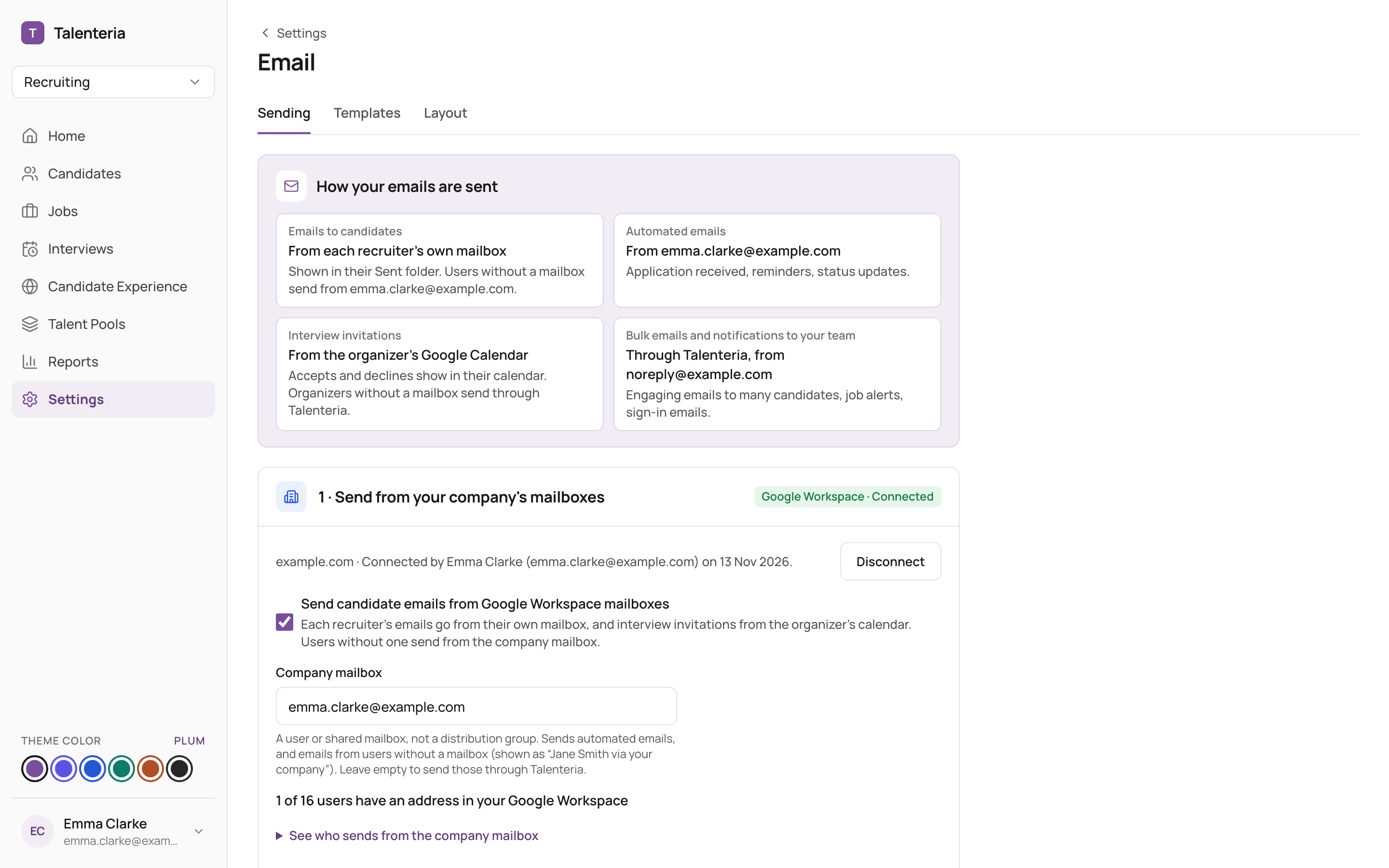
You need to be an Administrator in Talenteria. Go to Settings › Email › Sending. Which option to choose: How Talenteria sends email.
Connect Microsoft 365
- Under 1 · Send from your company's mailboxes, choose Microsoft 365.
- Click Connect Microsoft 365. A Microsoft 365 admin signs in and accepts the permissions once, for the whole company. Not the Microsoft 365 admin yourself? Click Copy a link for your IT admin and send it to them. The link works for 7 days.
- Back in Talenteria, tick Send candidate emails from Microsoft 365 mailboxes.
- Enter a Company mailbox, such as recruiting@yourcompany.com, and save. It's used for people without a mailbox in your Microsoft 365. It must be a user or shared mailbox, not a distribution group.
- Click Send a test email.
Check the status lines:
- Interview invitations · from the organizer's calendar.
- Teams links for MS Teams interviews · ready. If it says it needs one more permission, click Allow calendar events, then Check again.
See who sends from the company mailbox lists users with no address in your Microsoft 365.
Connect Google Workspace
- Under 1 · Send from your company's mailboxes, choose Google Workspace.
- In the Google Admin console, go to Security › Access and data control › API controls › Manage domain-wide delegation and click Add new. Paste the Client ID and OAuth scopes shown in Talenteria (use the copy buttons).
- In Talenteria, click Connect Google Workspace and sign in with a Google Workspace admin account.
- Tick Send candidate emails from Google Workspace mailboxes, set the Company mailbox, and Send a test email.
Send from your own domain
- Under 2 · Send through Talenteria, enter Your company's email domain and click Add domain.
- Add the three CNAME records shown (Host and Points to) at your DNS provider. Use Email these records to send them to whoever manages your DNS.
- Click Check DNS now. Each record shows Found or Not found yet. DNS changes can take up to 48 hours; Talenteria checks every hour.
- When verified, set the Send as address and click Save address.
- Choose whether to Keep candidates' replies in Talenteria.
If your account can't add a domain yet, the page says so: contact Talenteria support.
Disconnect
Click Disconnect (mailboxes) or Remove domain. Emails then go from Talenteria's own address.