Set up the chatbot and Candidate Q&A
You need to be an Administrator.
Write your Candidate Q&A
Both the career site chatbot and the AI interviewer answer candidates from these answers.
- Go to Settings › Candidate Q&A.
- Fill in the standard topics, grouped as:
- Pay and benefits: Salary range, Benefits, Bonuses and equity;
- Where and how you work: Remote and hybrid work, Locations and offices, Working hours, Business travel;
- Hiring process: How to apply, Interview process and next steps, Hiring timeline, Start date and notice period, Visa sponsorship and relocation;
- Company and growth: Company culture and values, Training and growth.
- Click Add (or Edit) on a topic and write the Answer: plain text, one to three sentences, up to 1,000 characters. The AI interviewer says it aloud.
- To add your own topic, click Custom topic.
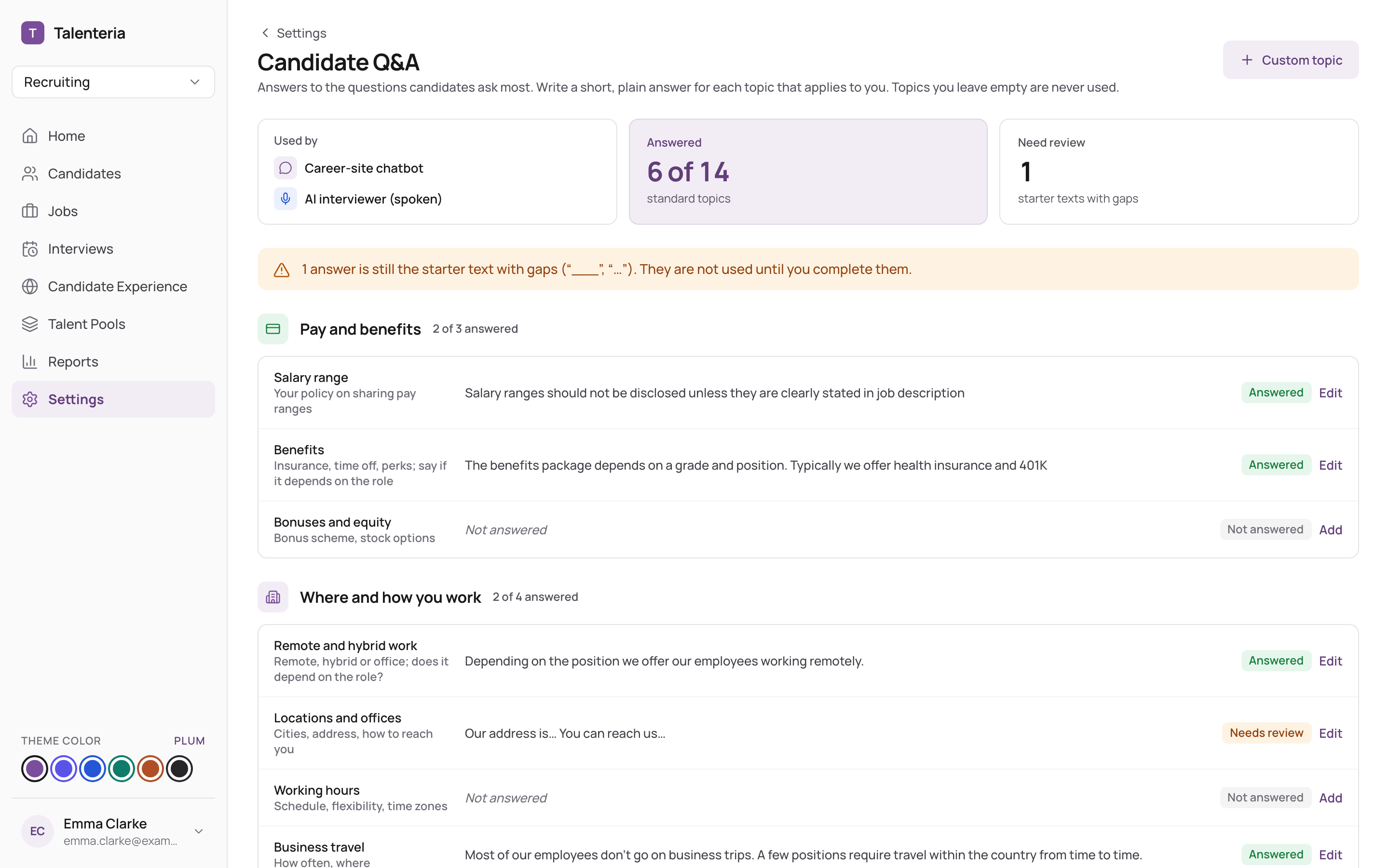
Each topic shows its status:
- Answered: used.
- Needs review: a starter text with gaps such as "___" or "…". Not used until you fill them.
- Not answered: never used.
The tiles at the top show how many of the 14 standard topics are answered.
Switch on the chatbot
- Go to Settings › Chatbot.
- Switch it Active.
- Fill in:
- Bot name (for example "AI Recruiter");
- Chatbot Welcome Message on Career Site;
- Answer when it doesn't know. Add
{0}where the visitor's question should appear.
- Click Save.
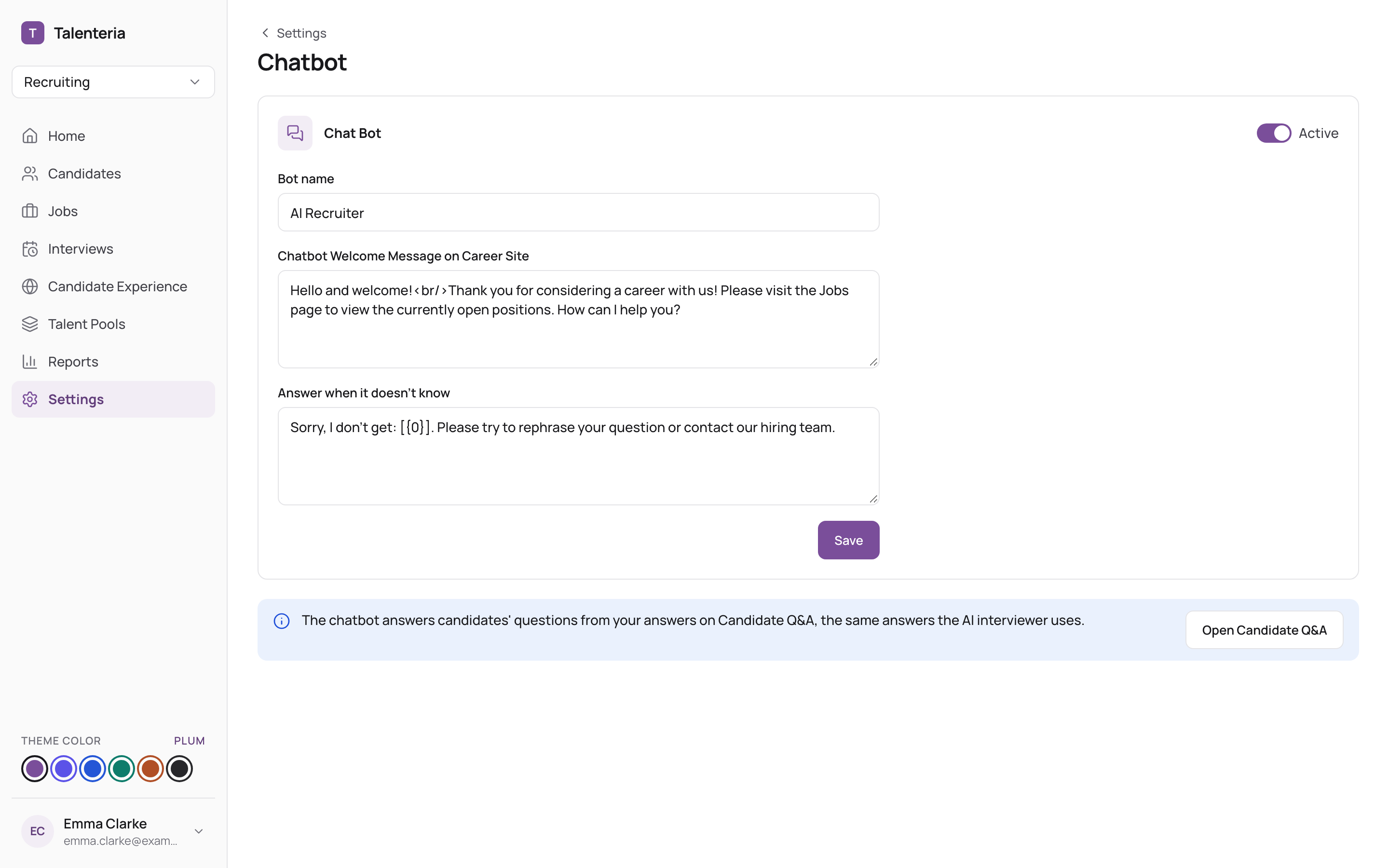
The chat bubble appears on all your career sites. To switch it off, switch off Active.
How it answers and its limits: Recruitment chatbot.