Connect an integration
You need to be an Administrator. Go to Settings › Integrations.
On this page, switching an integration Active only shows its settings. Nothing is saved until you click Update in the bar at the bottom (Discard cancels).
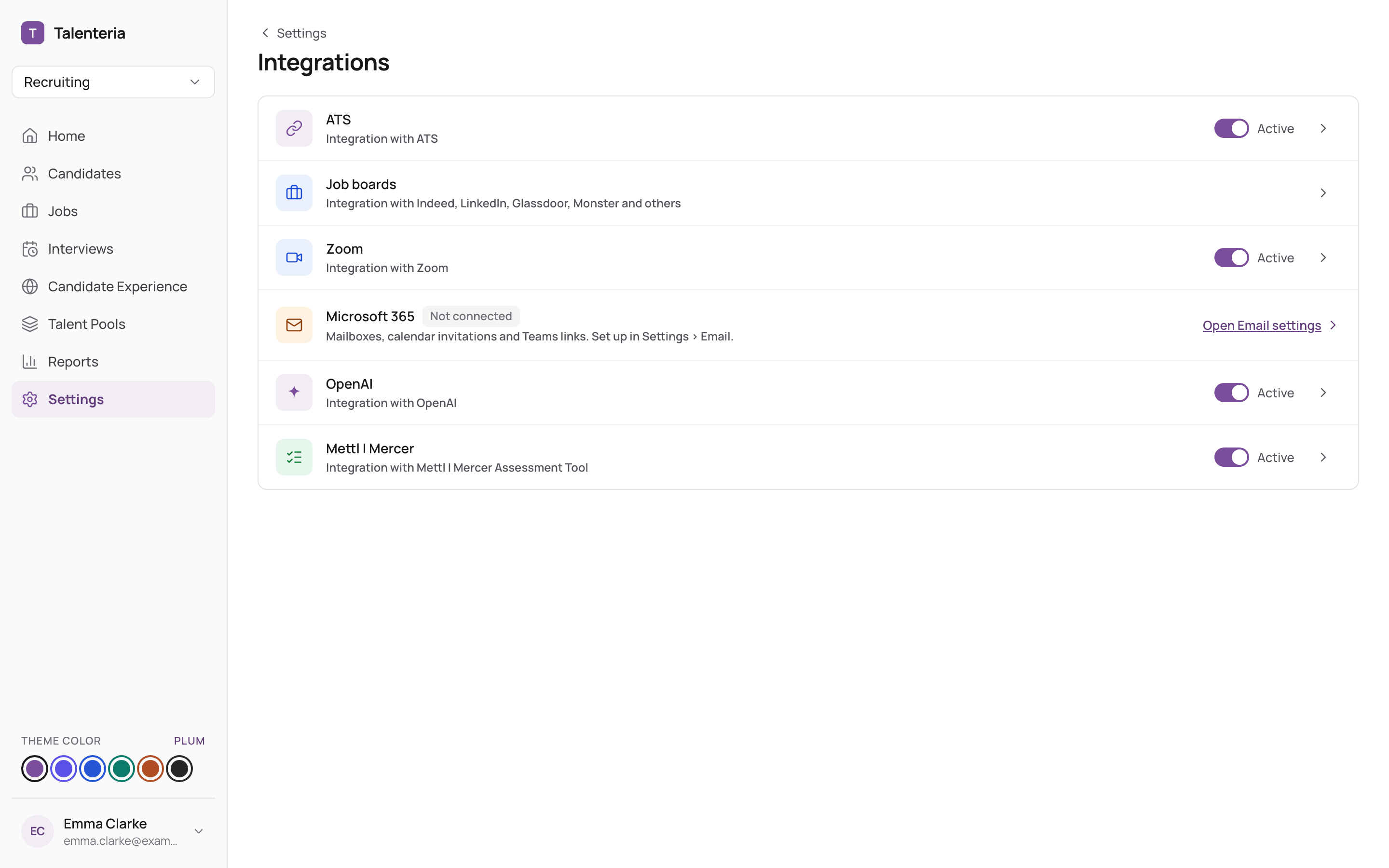
ATS
- Switch ATS to Active and click Update.
- Click Connect ATS and follow the steps to choose your ATS and sign in to it.
- Tick what to sync: Import Jobs from ATS, Import Candidates from ATS, Send Screening Results to ATS, Create Candidates in ATS.
- Click Update.
On a trial, contact Talenteria support to switch the ATS integration on.
Job boards
Under Job boards:
- Indeed: enter the Account email, click Update, then copy the feed address shown and send it to your Indeed contact.
- LinkedIn: enter the Poster email and Company ID, click Update, and give the feed address to LinkedIn.
- Monster: copy the feed address and give it to Monster.
Zoom
- In Zoom, create a server-to-server app for your Zoom account.
- Switch Zoom to Active, enter its Account ID, Client ID and Client secret, and click Update.
- For each person who organises Zoom interviews, go to Settings › Users and groups, click Edit and enter their Zoom Account Email.
Microsoft 365 and Google Workspace
They are set up in Settings › Email; the Microsoft 365 row here links there. See Set up email sending.
OpenAI
Only if you want AI to run on your own OpenAI account: switch OpenAI to Active, enter the API key, and click Update. Leave it blank to use Talenteria's.
Mettl | Mercer
Switch Mettl | Mercer to Active, click Add Key, enter the Public Key and Private Key, and click Update. Add a key group for each Mettl account. Results are brought in every night.