Let candidates book a time
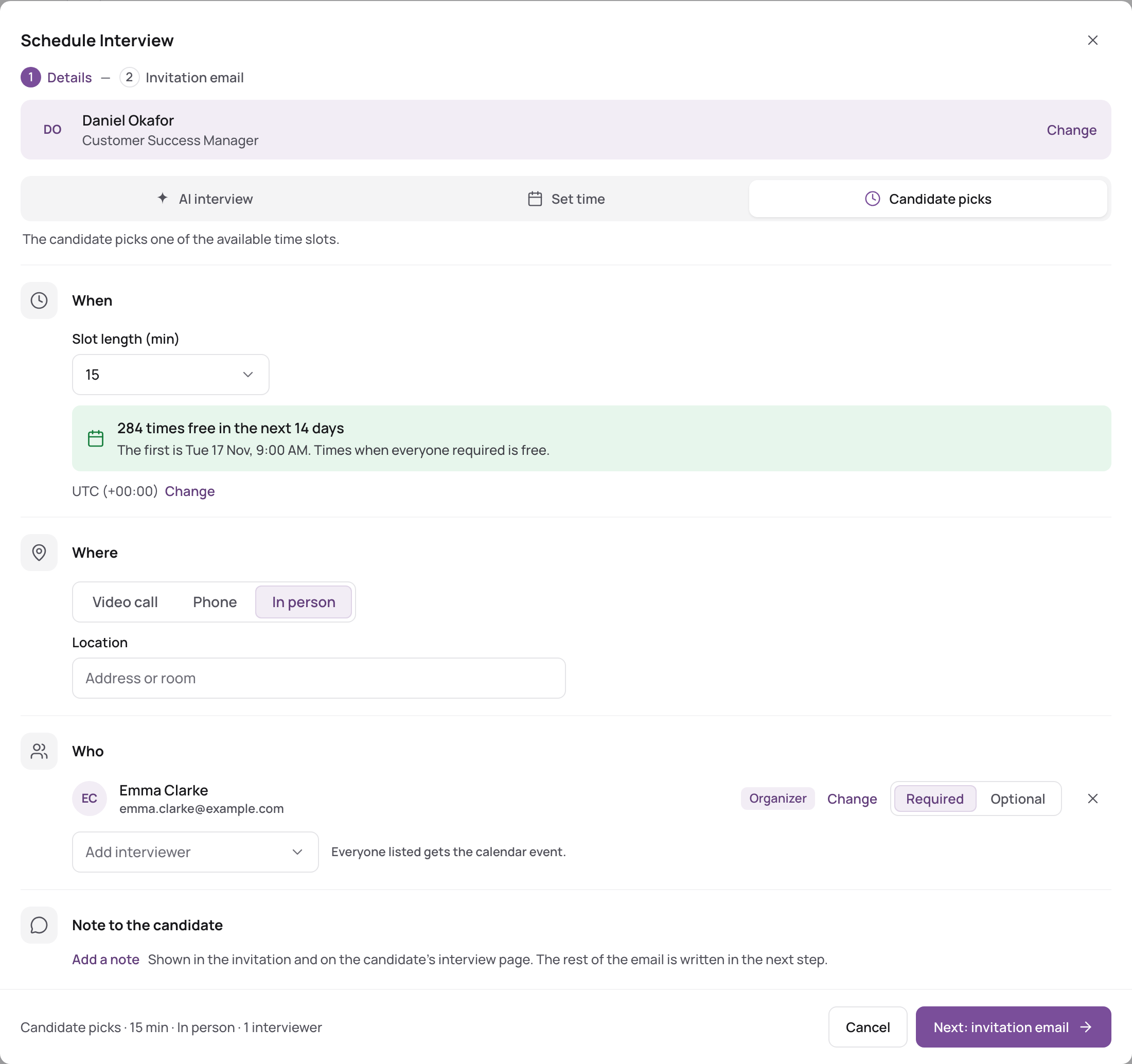
With Candidate picks, Talenteria offers the candidate only the times when every required interviewer is free, and the candidate books one.
- Open Schedule Interview (from the candidate, a candidate list, Home or Interviews). See Schedule an interview.
- Choose who it's for.
- Under How, choose Candidate picks.
- Set the Slot length (min): from 15 to 180 minutes, in 15-minute steps.
- Choose Where: video call, phone or in person, as for any interview.
- Under Who, add the interviewers and mark each Required or Optional. Only required interviewers must be free.
- Check the line under the interviewers. It says how many free times there are in the booking window and which is the first.
- Click Next: invitation email, check the text and click Schedule and send.
The candidate gets an email with the link Choose a time for your interview. Once they book, they get a confirmation and the interviewers get the calendar event.
When no time is free
If no time suits everyone, Talenteria says No time when everyone is free and shows each interviewer's hours. You can:
- click Make name optional for an interviewer who doesn't have to be there, or
- click Set the time yourself to switch to a fixed time.
You can't send the invitation until there is at least one free time.
Which times are offered
The times come from:
- each interviewer's interview hours, or the company hours;
- your company's Booking rules: how far ahead candidates can book, the minimum notice and the buffer between interviews;
- busy times in connected calendars, other Talenteria interviews, and blocked time.
How long the booking window is, and the other rules, are set for the whole company in Settings › Interviews, not per invitation. See How self-scheduling finds free times.