Set interview settings and interview hours
These settings decide when candidates can book self-scheduled interviews. See How self-scheduling finds free times.
- Go to Settings › Interviews.
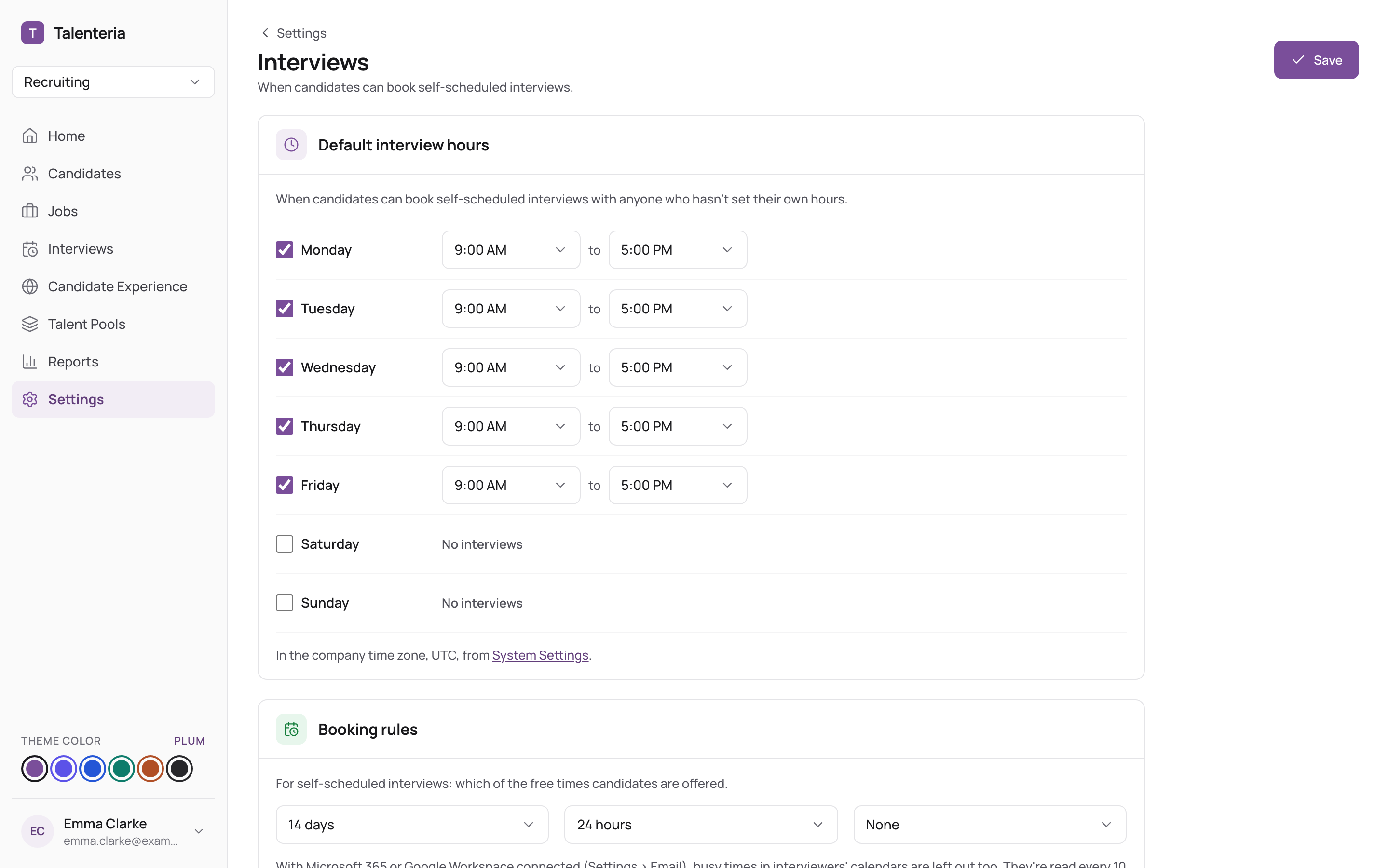
- Under Default interview hours, tick the days interviews can happen and set the hours for each. Unticked days show No interviews. By default: Monday to Friday, 9:00 to 17:00. The hours are in your company's time zone, set in Settings › System settings.
- Under Booking rules, set:
- How far ahead candidates can book: 7, 14 (default), 21, 30, 60 or 90 days.
- Minimum notice: no minimum, 2, 4, 12, 24 (default) or 48 hours. Candidates can't book a time sooner than this.
- Buffer: none (default), 10, 15, 30 or 60 minutes kept free between interviews.
- Click Save.
Interviewers with their own hours
The company hours apply to everyone who hasn't set their own. Interviewers with their own hours lists those who have, with their hours and any blocked time. Click Edit to change someone's hours.
- To set your own hours: click your name in the sidebar and choose My Interview Hours. See Edit your profile and set your interview hours.
- To set a colleague's: go to Settings › Users and groups, open their row's menu and choose Interview Hours.