Track and update an offer
See your offers
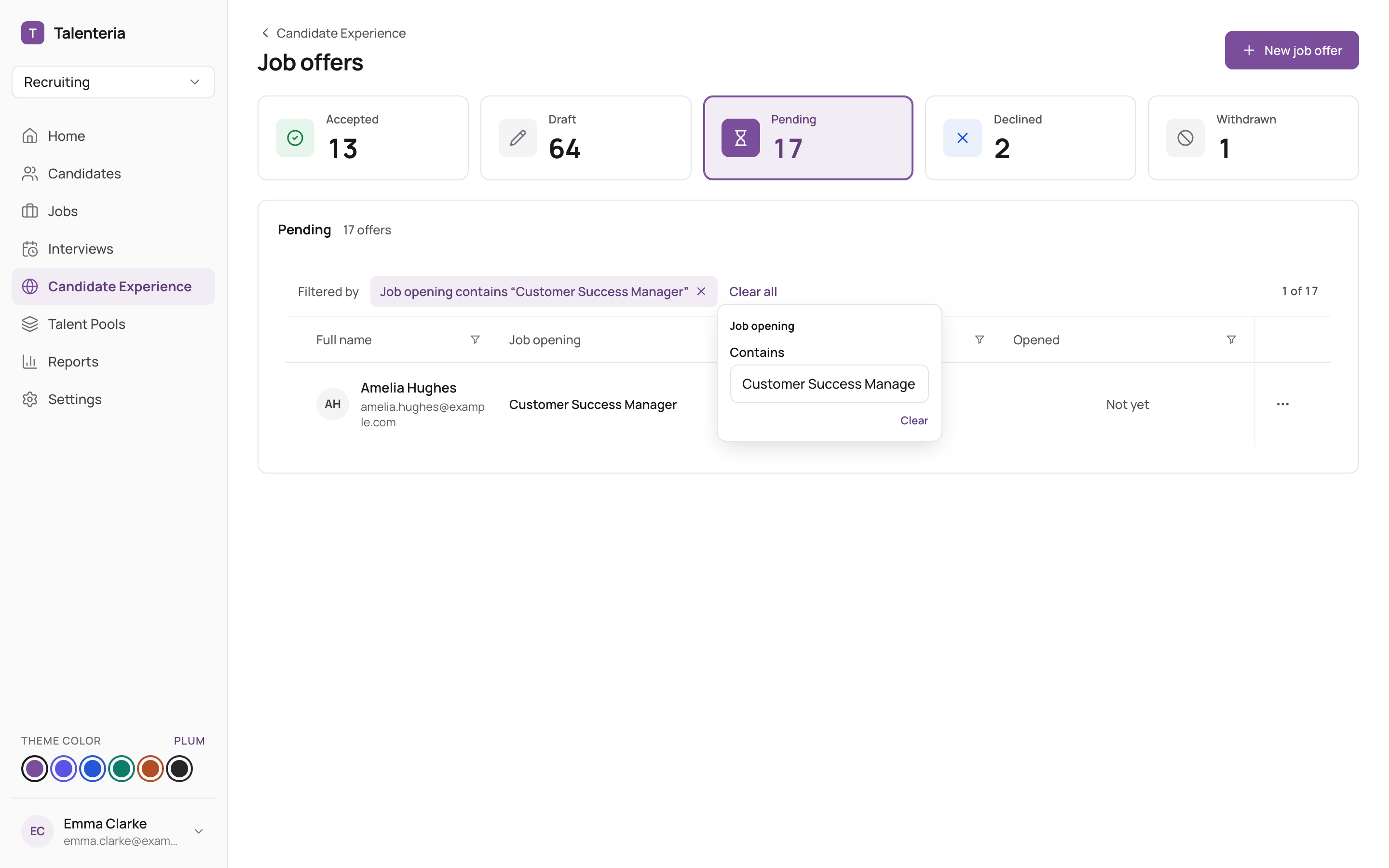
- Candidate Experience › Job offers lists all offers, with a tile per status. Pending offers show when they were Sent and Opened (or Not yet).
- On Home, Pending job offers shows how many are waiting. Offers pending for more than 5 days appear under the items that need your attention, with Follow up.
- On the candidate's page, the Job offer panel shows the offer's status, version and dates, with earlier versions under Other offers.
Record an answer given outside Talenteria
If the candidate answered by email or phone (or you sent a PDF):
- On Job offers, choose Record answer in the offer's row, or open the offer and click Record answer.
- Choose Accepted the offer or Declined the offer, set Answered on, and add a Reason for a decline if you have one.
- Click Record answer.
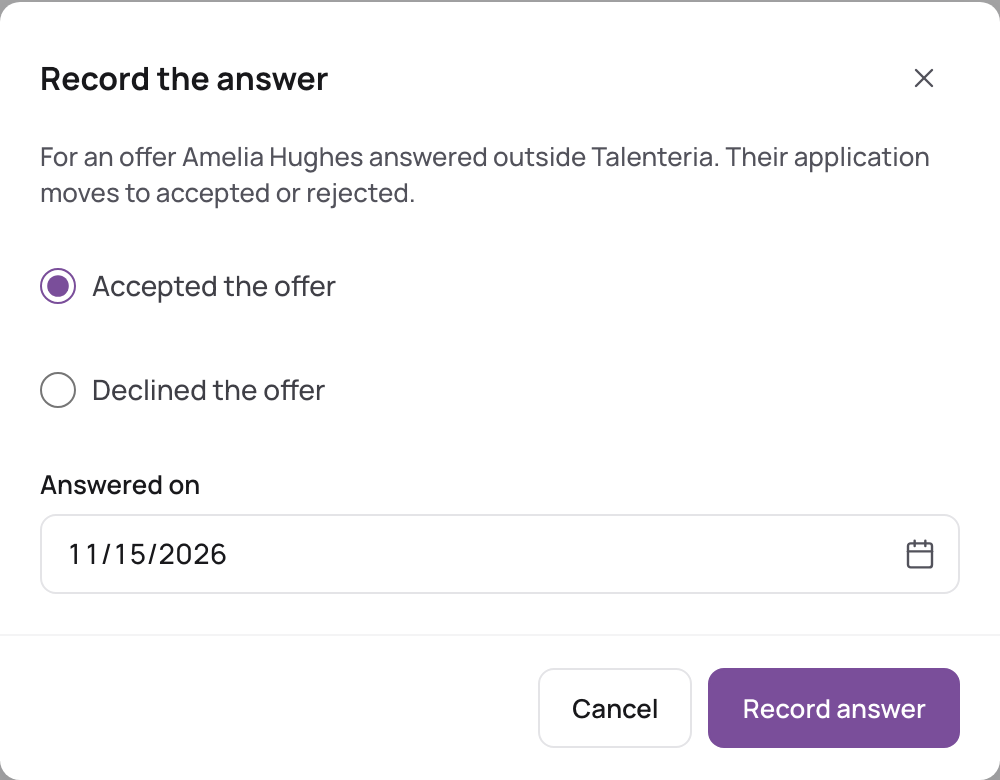
The candidate's application moves to Hired or Rejected, as when they answer online.
Change a sent offer
A sent offer can't be edited. Open it and, under Need to change it?:
- New version makes a copy as a draft. Edit it and send it; the pending version is then withdrawn automatically.
- Withdraw this offer stops the candidate from answering. You can make a new version afterwards.
Other actions
| Action | For |
|---|---|
| Edit | Drafts |
| Mark as sent | Drafts you handed over another way. They become Pending. |
| Open, Copy link, Download PDF | Sent offers |
| View signed offer | Accepted offers |
| Delete | Any offer except accepted ones. This can't be undone. |
Talenteria doesn't resend offers automatically. To remind the candidate, Copy link and send it again yourself.