Change a job's status, copy or delete a job
Close, reopen or put a job on hold
To change one job: open it, click Edit, go to Review, choose the Status and click Save & Close.
To change several jobs at once:
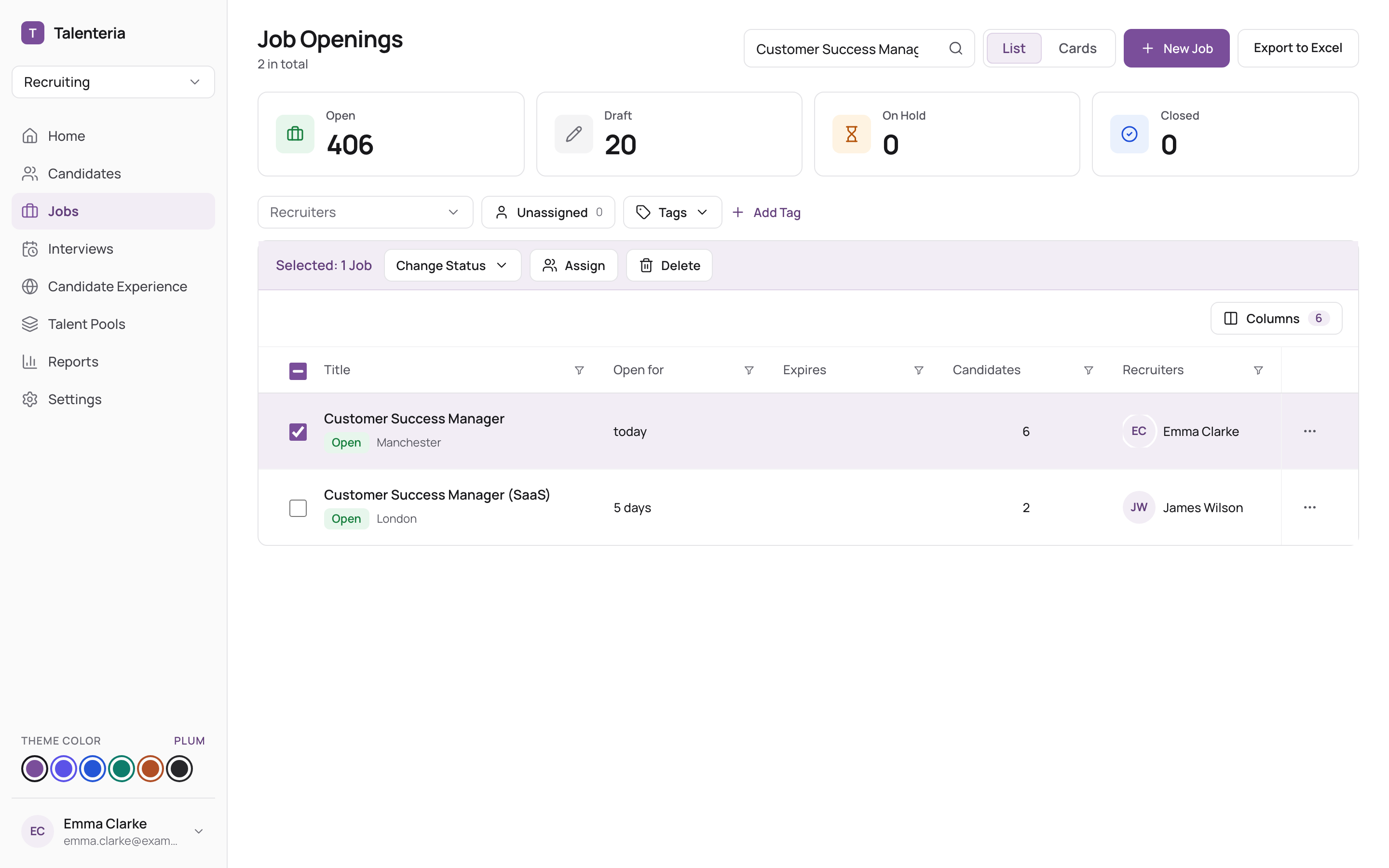
- Go to Jobs and tick the jobs in the list.
- Click Change Status and choose Open, Draft, On Hold or Closed.
Closing a job takes it off your career site and job boards. Its applicants are not notified or rejected; update their statuses yourself. Reopening needs a free active job slot in your plan. See The life of a job.
Assign recruiters to several jobs
- On the Jobs list, tick the jobs.
- Click Assign, choose the Recruiters and click Assign.
The recruiters are added to each job; recruiters already on the job stay. If the recruiter assignment email is switched on in your email templates, newly added recruiters get an email with a link to the job.
To find jobs that have no recruiter, use the Unassigned filter on the Jobs list.
Copy a job
- On the Jobs list, click Copy in the job's row actions (or in the card's menu in Cards view).
The copy is created as a Draft named "title - copy", with you as its author. It keeps the job's details, tags, skills, recruiters, screening criteria and questions, and AI interview questions. Candidates and applications are not copied.
Delete a job
Deleting can't be undone. It removes the job and all its applications, with their AI scores and job offers. The candidates themselves stay in Candidates.
- On the Jobs list, click Delete in the job's row actions or card menu. To delete several, tick them and click Delete in the selection bar.
- Confirm.
To keep the job's history, close it instead.
Find jobs on the Jobs list
- Click a status tile (Open, Draft, On Hold, Closed) to see jobs with that status.
- Search by title, or filter by Recruiters, Clients, Unassigned or Tags.
- Switch between List and Cards view.