Set your AI match levels
- Go to Settings › AI match levels.
- For each level:
- change its Name;
- change Starts at score with − and + (steps of 0.25) or type it. The level below then ends where this one starts.
- To add a level, click Add a level between X and Y. To remove one, click its bin icon. The lowest and highest levels can't be removed.
- Click Save.
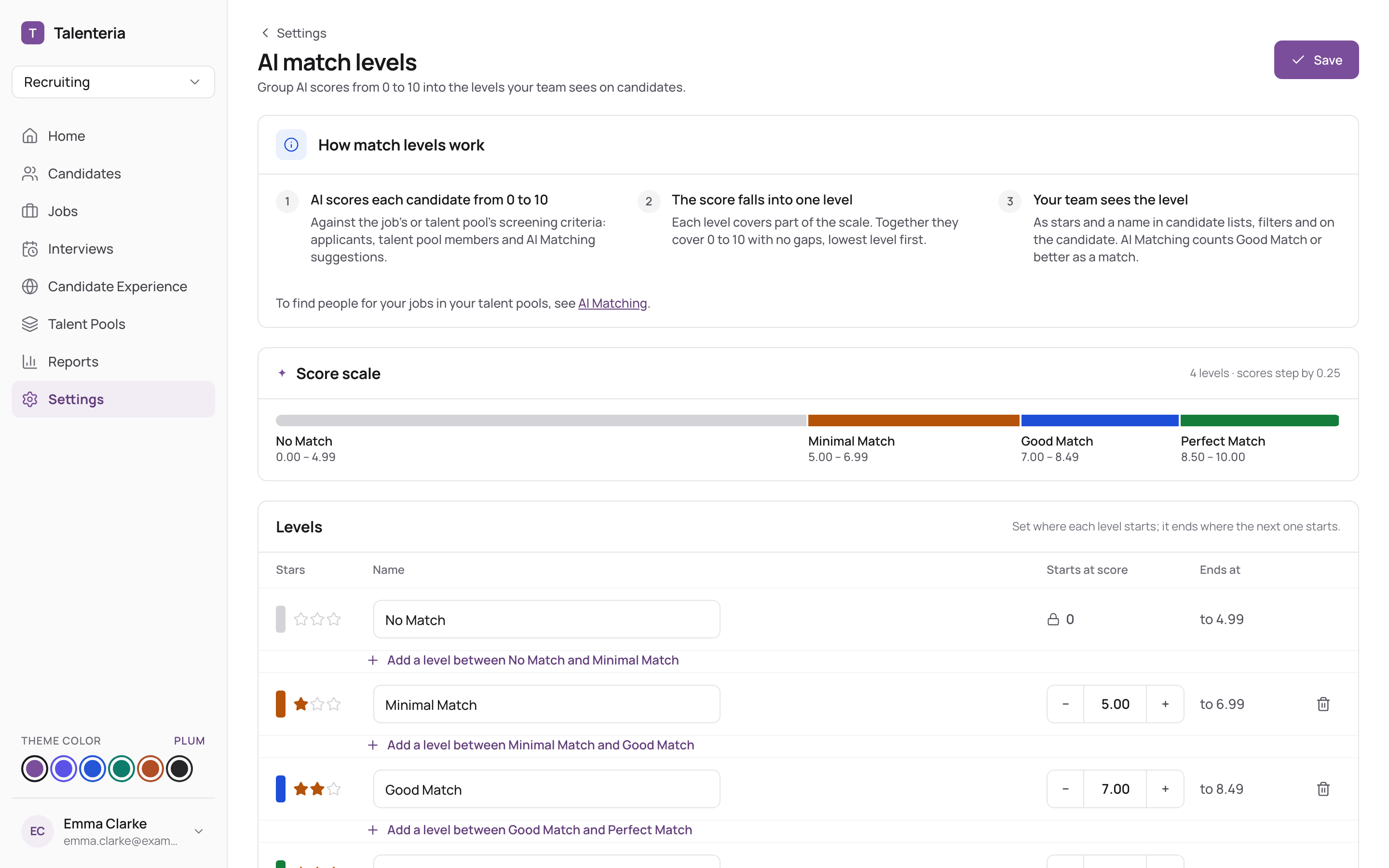
The levels must cover 0 to 10 with no gaps, and each must be at least 0.25 wide.
Saving gives applicants of open jobs and talent pool members their new levels. Scores don't change, and closed jobs keep the levels they had.
AI Matching counts the third level from the bottom and above as a match (Good Match with the defaults). If you add or remove levels, check which level that is now.