Link jobs and offer templates to a client
Choose the client on a job
- Create the job, or open it and click Edit.
- On step 2, Location, Pay and Team, choose the Client. Only active clients are listed. To add one, click New Client.
- Save.
Now the client's portal users see the job in the employer portal, and you can share its candidates with them. The client's name shows in the job's header, and the client's details are on the job's Details tab.

A job has one client. To take it away, clear the Client field.
Find a client's jobs
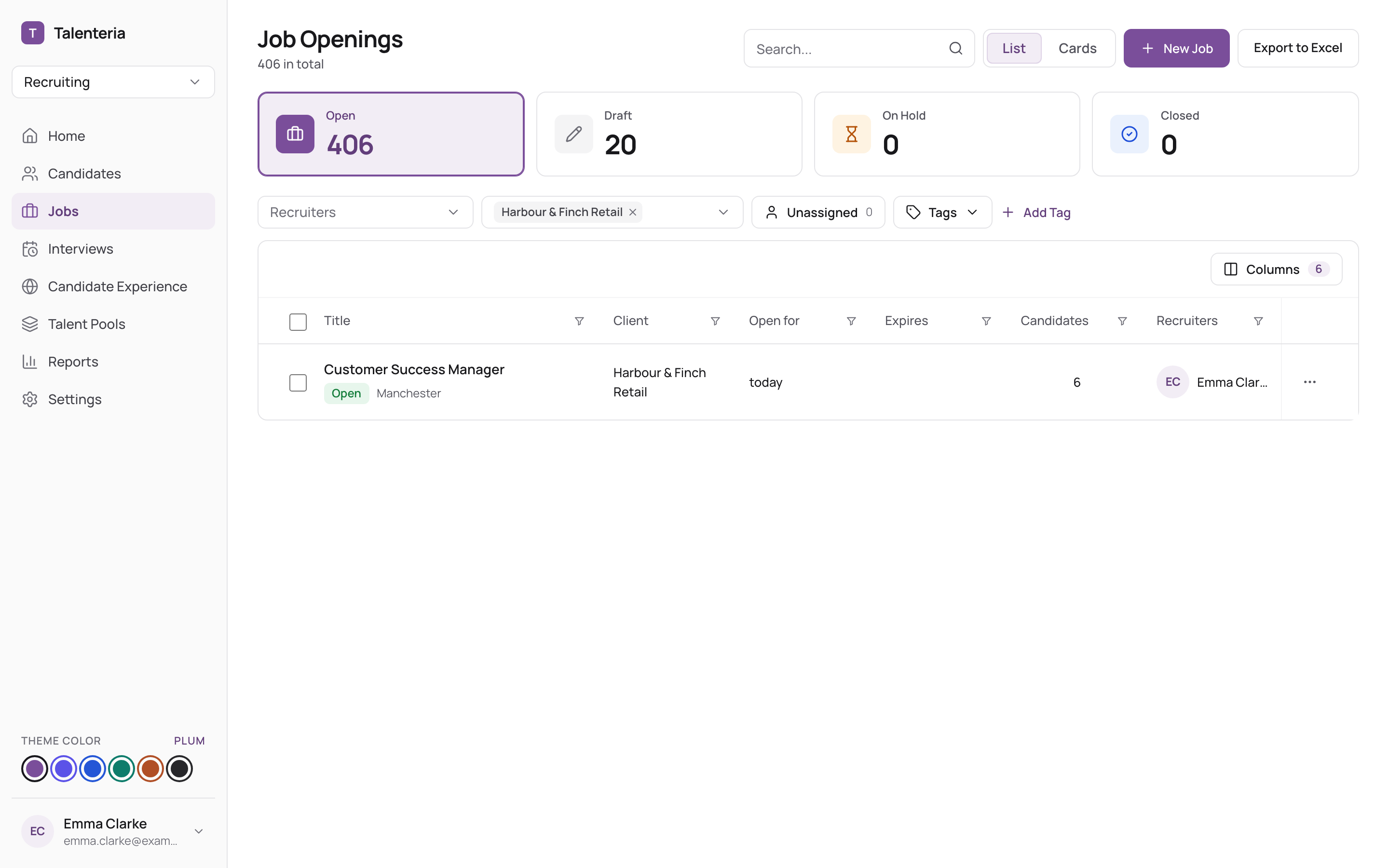
On Jobs, use the Clients filter at the top of the list. You can pick several clients. The filter and the Client column appear once you have at least one client.
Give a client its own offer template
- Go to Settings › Job offer templates and open a template, or create one.
- Choose the Client. Leave it on Any client for a template everyone can use.
- To make it the default for that client's jobs, tick Default for client jobs. It replaces that client's current default.
- Click Save template.

New offers for that client's jobs start from its default template. Jobs without a client, or with a client that has no default, use your company default. See Set up offer templates and fields.