Share candidates and act on the client's decision
The client sees a candidate only after you share them. Make sure the job has a client first: see Link jobs and offer templates to a client.
Share one candidate
- Open the candidate from the job.
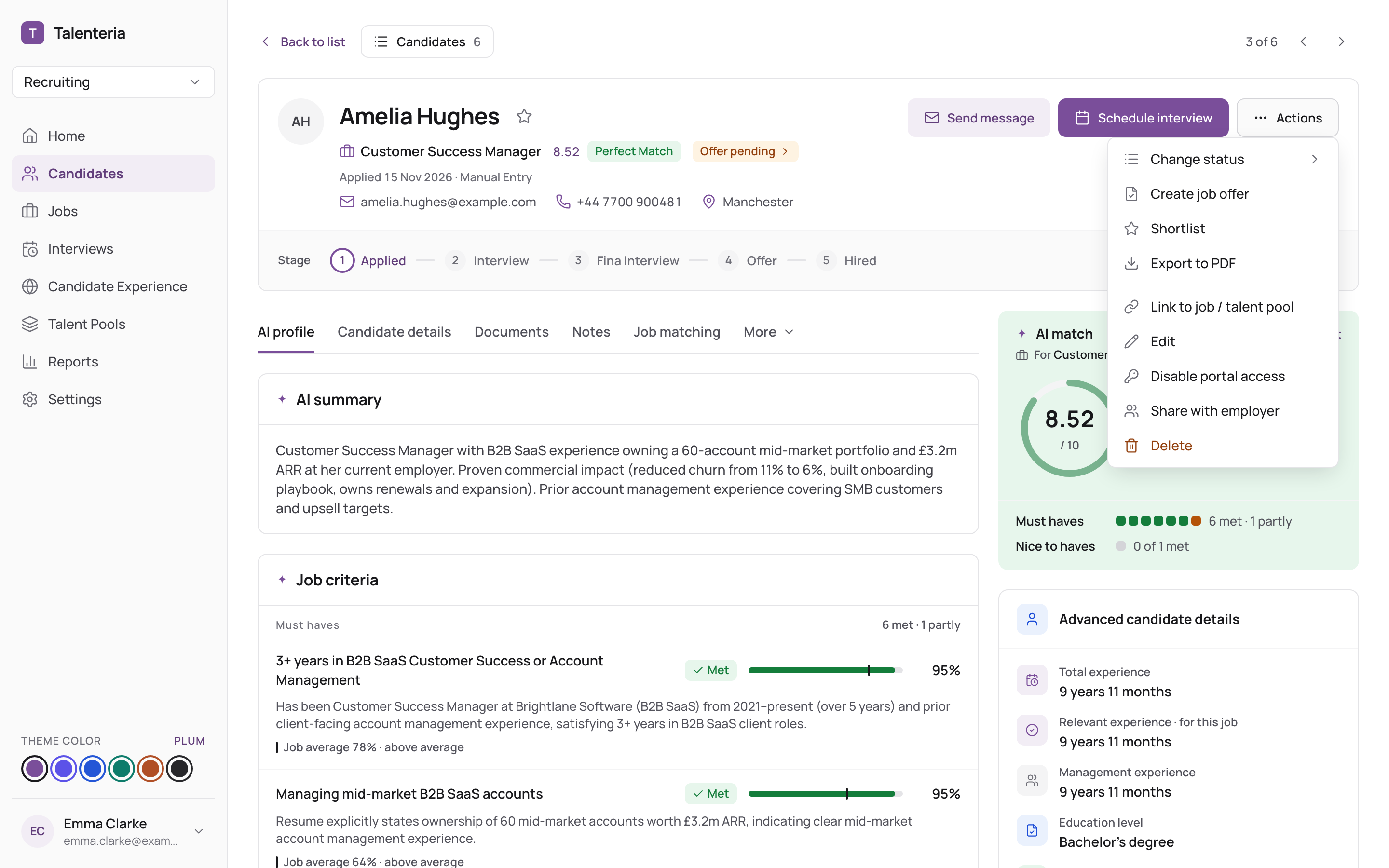
- Choose Actions › Share with employer.
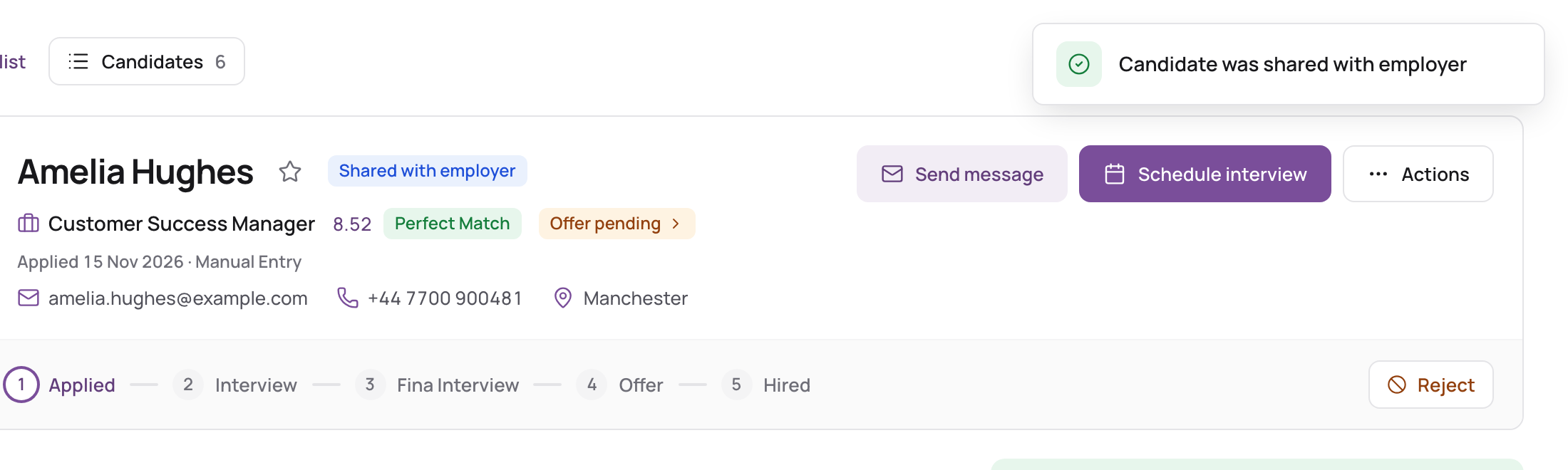
The candidate shows Shared with employer, and every portal user of the job's client gets an email with a link to the candidate.
Share several candidates
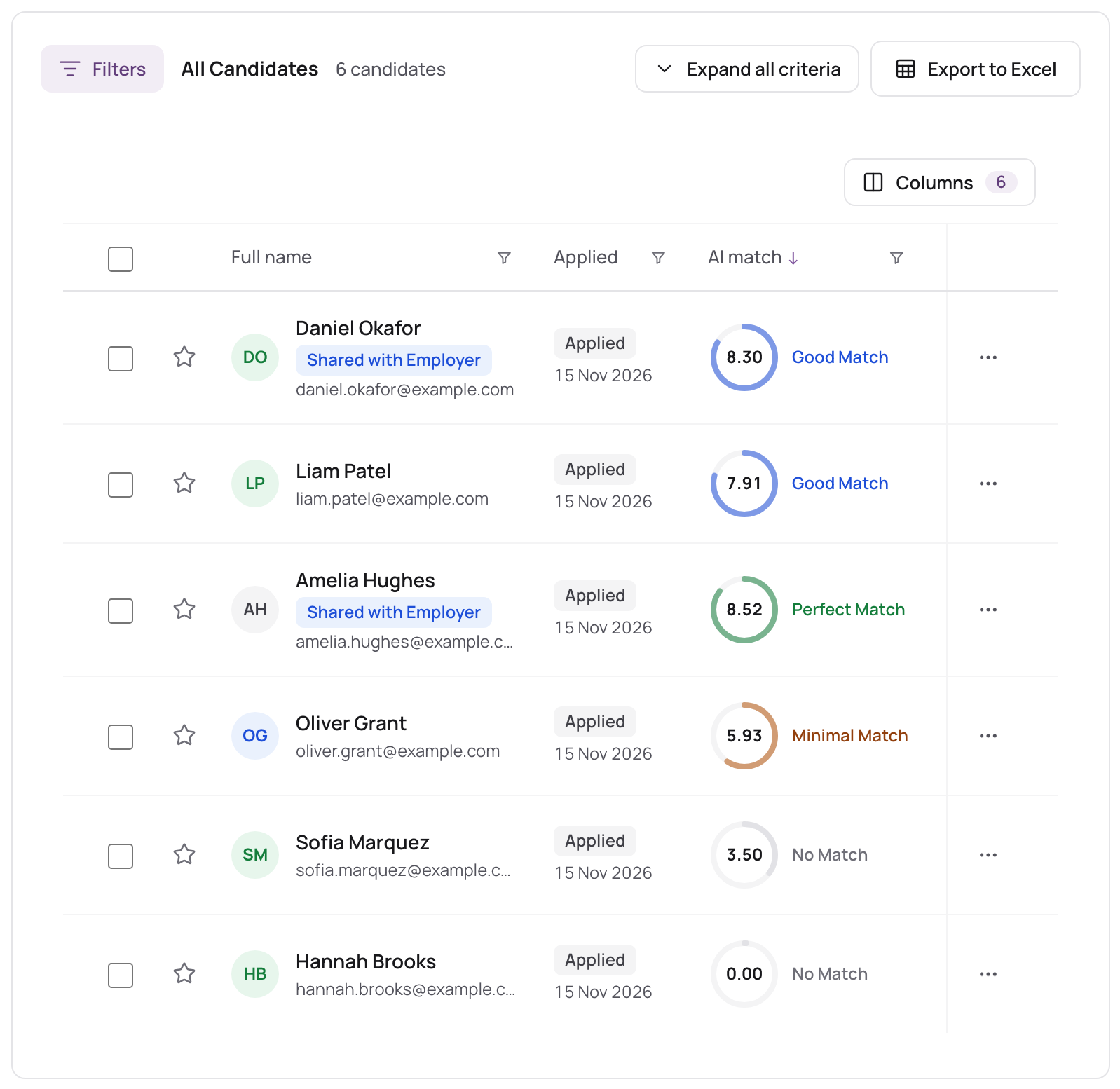
- In the job's Candidates tab, or in Candidates › Active Applicants, tick the candidates.
- Choose Bulk actions › Share with employer.
Only job applicants can be shared. Talent pool members are skipped; if you only ticked pool members, Talenteria says "No job applicants selected."
Hide a candidate again
On the candidate, choose Actions › Hide from employer, or click the Shared with employer badge. The candidate disappears from the portal. The client isn't told.
Hiding works one candidate at a time. It doesn't clear an approval or rejection the client already gave.
Before you share
- The job needs a client. On a job without one, the candidate is marked as shared, but nobody can see them.
- Sharing again emails again. Sharing a candidate who's already shared sends the email to the client a second time.
- What the client sees: the AI score and evaluation, experience, education, skills and documents, but not contact details, notes, interviews or offers. See What clients see and do.
When the client decides
The job's recruiters get an email, and the candidate shows Approved by employer or Rejected by employer. The client's comment is on the Notes tab.
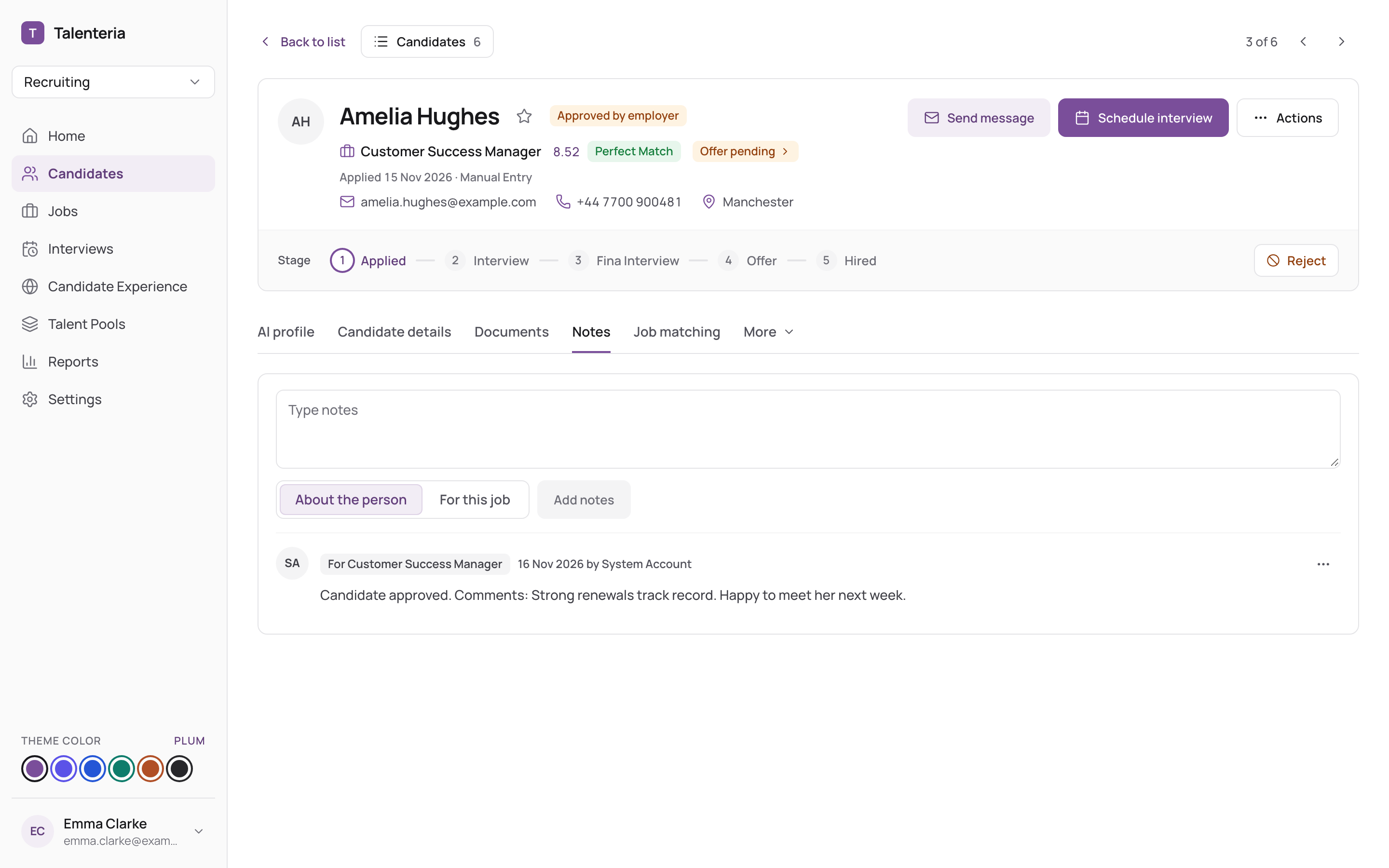
The candidate's status doesn't change. Then:
- Approved: move the candidate on, for example to an interview, or send the offer. On Home, under Needs your attention, approved candidates on open jobs show "was approved by the employer" with Send offer until they have an offer.
- Rejected: change their status to a rejection status, and let the candidate know if you wish. See Change a candidate's status.
The client can change their decision later. You'll get another email each time.