What clients see and do in the employer portal
Portal users sign in on your career site. After sign-in they land on the employer portal's start page, and the portal's pages appear in the site menu. Nobody else sees these pages.
The pages
The portal is built from five page widgets. The page names and menu come from your career site, so yours may differ.
| Widget | What it shows |
|---|---|
| Employer Dashboard | Four tiles: Jobs (all the client's jobs), Candidates, Approved and Rejected (counted from shared candidates only). |
| Employer Job List | The client's jobs with Title and location, Applicants (shared candidates only), Created & Expired and Status, and a Create Job button. Draft and Closed jobs are listed too. |
| Employer Candidate List | Shared candidates, filtered by Job and by Pending, Approved or Rejected. Columns: Full Name, Applied, Job, AI Score, AI Qualified and View Profile. |
| Employer Candidate Card | One shared candidate, with Approve and Reject. |
| Employer Create Job | The Post Job form. See Handle jobs your clients post. |
On many sites the dashboard tiles sit above the job list, on a page such as Employer Portal › My Jobs:
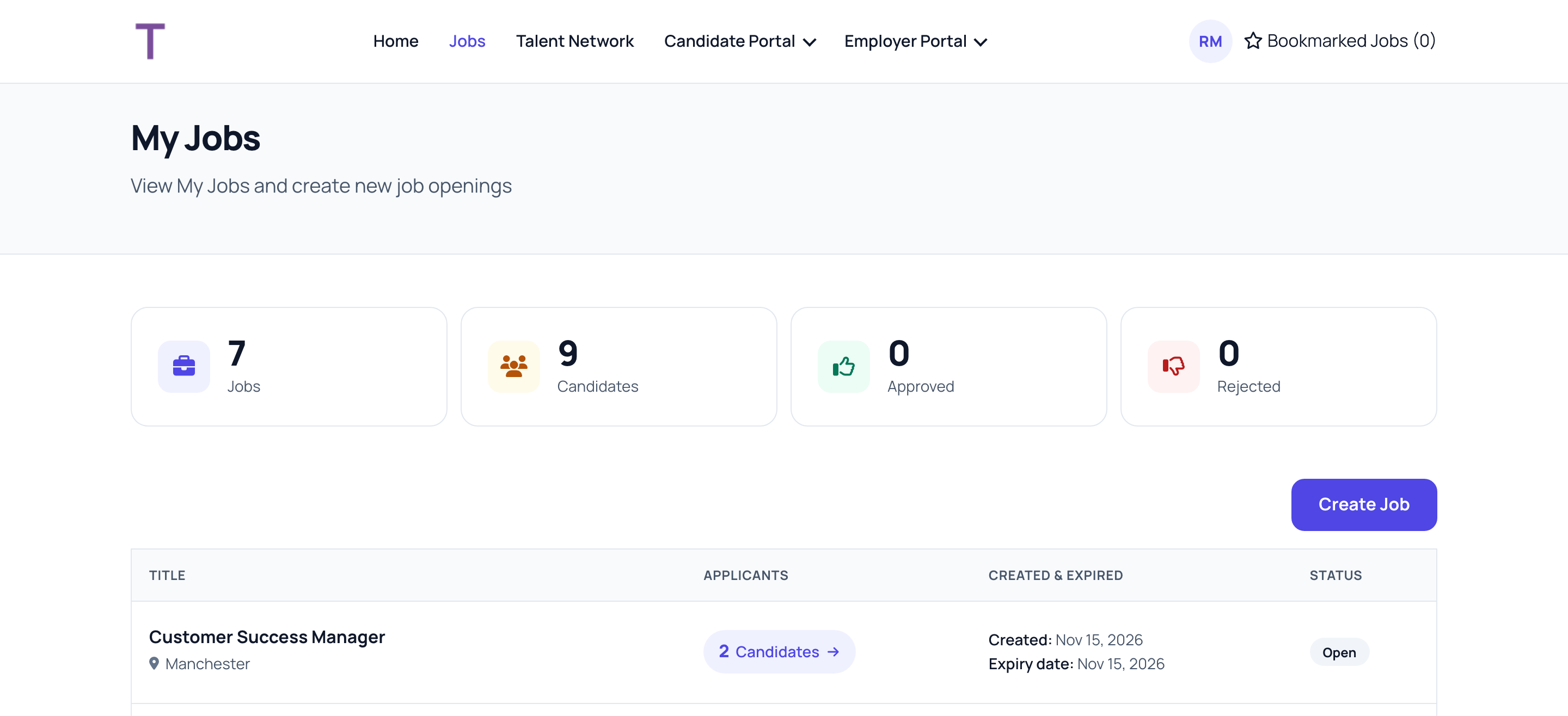
A portal user who works for several clients sees the jobs and candidates of all of them.
What they see about a candidate
On the candidate card:
- Photo, name, job title and city, and their own decision: Pending, Approved or Rejected.
- The AI score out of 10 and the AI match level.
- The candidate's Summary and the AI Evaluation: each screening criterion with its percentage and the reason.
- Work & Experience and Education.
- At a glance: total, relevant and management experience, education, languages and occupation groups.
- Professional Skills: required, missing and additional skills.
- Documents, such as the resume, which they can download.
What they don't see
- Candidates you haven't shared, or have hidden again.
- The candidate's email address and phone number.
- Your notes, interviews, job offers, screening question answers and pipeline status.
- The candidate's other applications.
- Other clients' jobs and candidates.
Approve and reject
On the candidate card, the portal user clicks Approve or Reject, adds Comments (optional), and confirms with Approve Candidate or Reject Candidate.
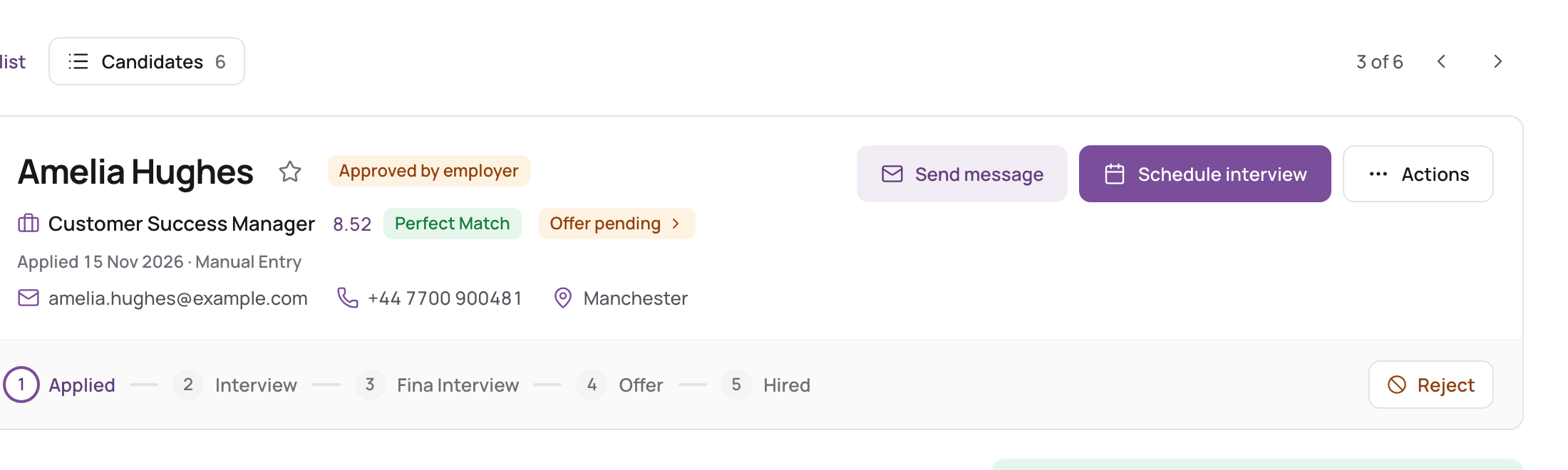
- The candidate shows Approved by employer or Rejected by employer in Talenteria.
- If they wrote a comment, it's saved as a note on the application: "Candidate approved." or "Candidate rejected.", followed by the comment.
- The job's recruiters get an email with the decision and the comment. If the job has no recruiters, nobody is emailed.
- The candidate's status doesn't change. Moving them on, or rejecting them, is your decision.
- The client can change their mind later. Each change replaces the earlier decision and sends a new email.
The portal has no comments without a decision, no messages to you, and no interviews or offers. Clients can't edit a job after posting it.