Use the candidate card
Click a candidate in any list to open their page. It shows the person in one job or talent pool, the application. If the person has no application, you see their profile with Add to job or talent pool.
Move between candidates with Previous and Next (or the ← and → keys); Back to list returns to where you were.
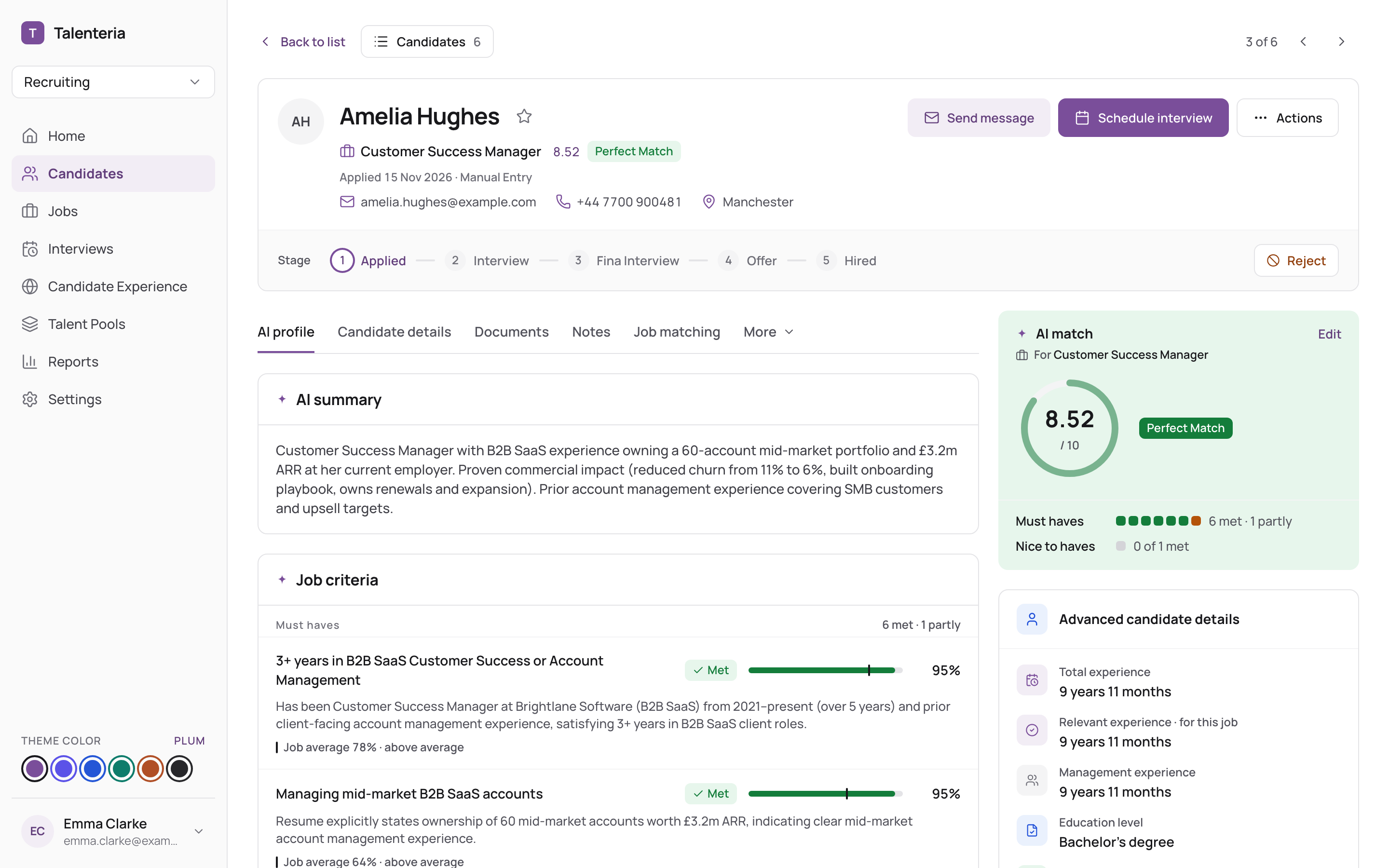
The header
- Name, with a star to shortlist the candidate.
- The job or talent pool, when they applied and where from.
- Email, phone and address.
- Badges such as Shared with employer, Approved by employer or a job offer status.
- Buttons: Send message, Schedule interview and Actions.
Actions has: Change status, Send message, Schedule interview, Create job offer, Shortlist, Export to PDF, Link to job / talent pool, Edit, Enable or Disable portal access, Share with or Hide from employer, and Delete.
Below the header, the Stage bar shows the pipeline. Click a stage to move the candidate there, or click Reject. See Change a candidate's status.
The tabs
| Tab | What's on it |
|---|---|
| AI profile | AI summary, the Job criteria (or Talent pool criteria) score breakdown, AI insights, the profile read from the resume, and screening question answers. |
| Candidate details | All candidate fields. |
| Documents | The resume viewer (Full screen, Download), pictures and All files. |
| Interviews | Interviews for this application. |
| Notes | Your team's notes. |
| Job matching | Other jobs found for the candidate (Jobs Found). |
| More | Application form, Emails, References, Application history, Assessments. |
Tabs with nothing to show (for example Documents or Interviews) are hidden.
The side panel shows the AI match, interview and assessment scores, advanced candidate details, the application and any job offer.
Add a note
- Open Notes and type in Type notes.
- Choose About the person (seen on every application of this person) or For this job / For this talent pool.
- Click Add notes.
To delete a note, use its ⋯ menu.
Upload a document
- Open Documents and click Upload Document.
- Choose the Document Type and the file, then click Upload.
Document types and their size and format limits are set by your administrator. See Set up candidate fields, statuses and document types.
Edit the candidate's details
Choose Actions › Edit, change the fields and save.
Override the AI score
If you disagree with the AI, set the score yourself:
- In the side panel, click Edit next to the AI match score.
- Enter the Score and choose the AI Match Level.
- Write Notes explaining why (required, up to 1000 characters).
- Click Update.
The score is then marked Manually edited.