Find candidates: search, filters and Top 25 lists
How the three views differ: The three views.
Search with AI
- Go to Candidates and choose Candidate Search.
- Switch to AI Search.
- Under Who are you looking for?, describe the person, for example "Nurses in Manchester with ICU experience and at least 3 years". Or click one of the Try an example chips.
- Click AI Search.
- Click Show what's searched to check how AI understood you. Narrow the results further with the filters on the left.
Search by keyword
- In Candidate Search, switch to Keyword Search, or type in Quick Search... at the top of any Candidates view and press Enter.
- Enter names, an email, or words from resumes and candidate fields. All words must match.
- Click Search.
Use OR, brackets, "exact phrases" and field:value for more precise searches. See Keyword Search.
Save a search
- After searching, click Save search.
- Enter a name (up to 100 characters) and save.
Open it later from Saved searches, where you can also rename or delete it. Deleting a saved search doesn't change any candidates.
Filter the lists
- In Active Applicants, pick a job or talent pool at the top (All Job Openings, All Talent Pools), or leave both on All.
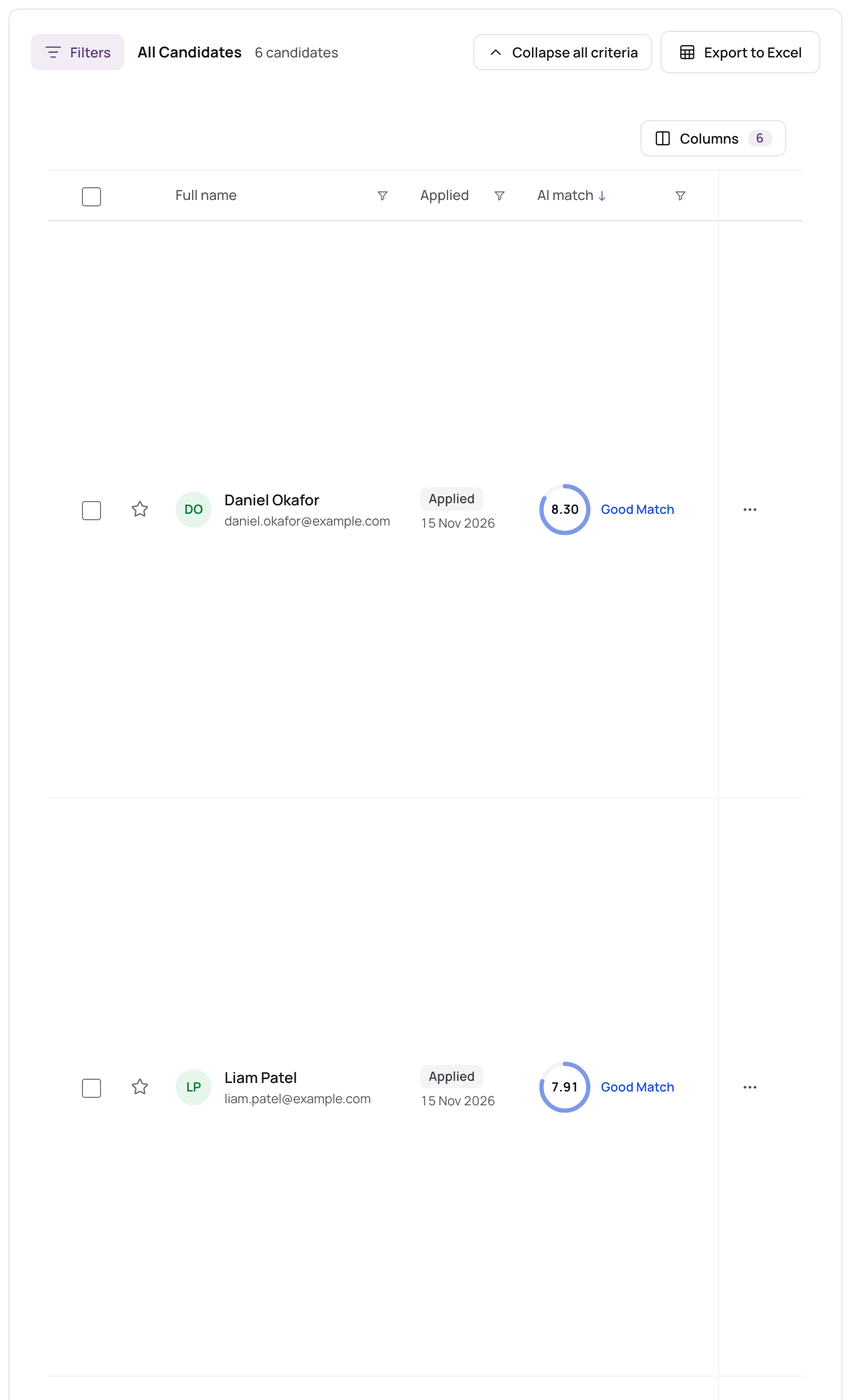
- Use the filters on the left. Each one you set shows as a chip above the list; click Clear all to remove them all.
- To filter by one of your candidate fields, click + Add filter.
The count above the list shows how many match, for example "10 of 1,245 applications".
Candidate Database has its own filters for people: Worked as, Years in that role, Seniority, Talent pools (including Not in any pool), Applications (No job applications finds people you could invite to a job), and more.
Use the Top 25 lists
- In Active Applicants, pick one job under All Job Openings.
- Under Quick Filters, choose Top 25 Overall, Top 25 by Experience, Top 25 by Education or Top 25 by Skills.
The list shows the 25 best applicants, by AI match score or by that criterion's score. It ranks only the applicants your other filters leave, so you can combine it, for example, with Status = Applied.
Quick Filters also has Shortlisted (applicants you starred) and Applied Today.
Choose columns
- Click Columns.
- Tick the fields you want to see (use Find a field to search them), or click Reset to default.
- Click Done.