Email and message candidates
Talenteria sends messages to candidates by email.
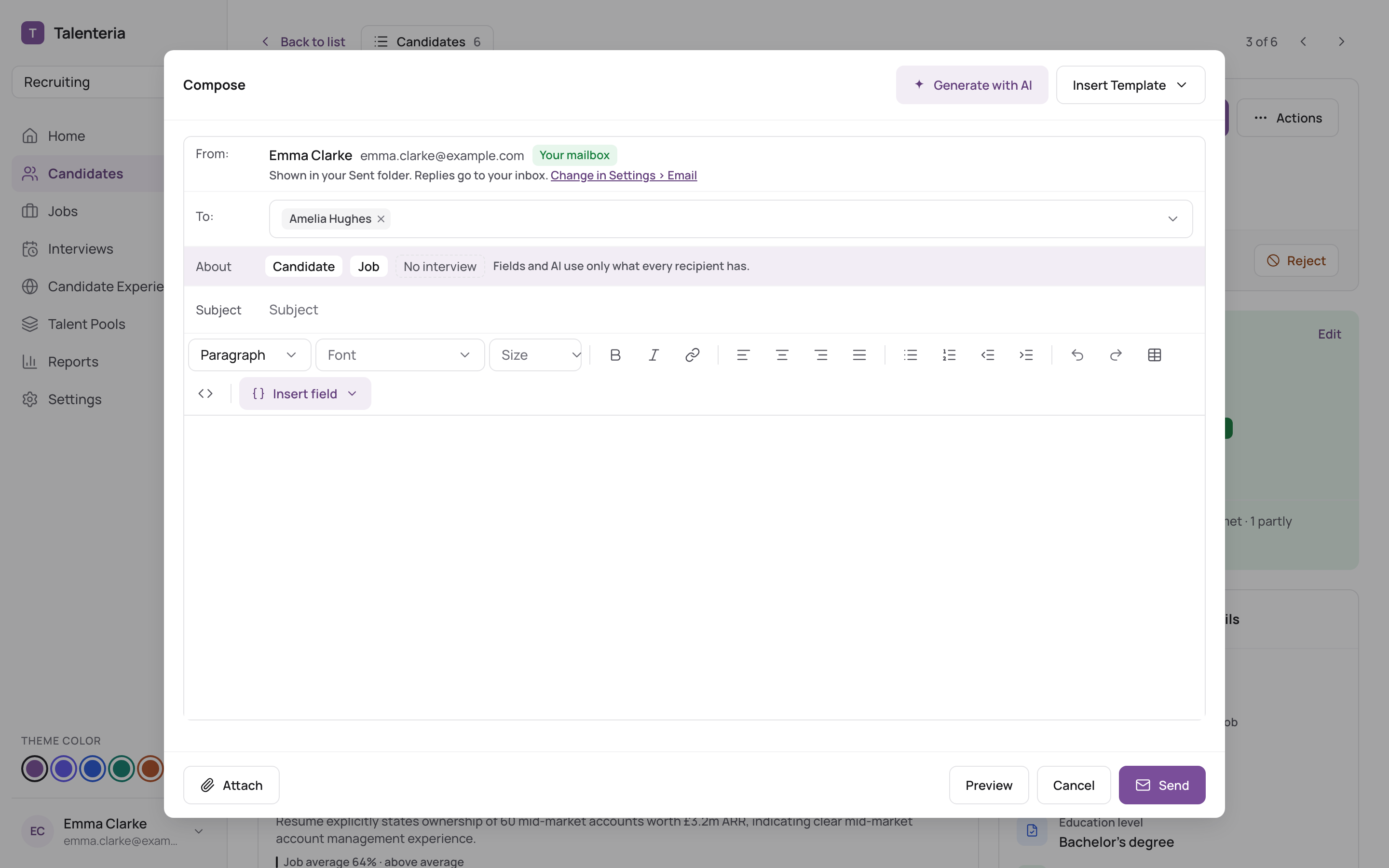
Send an email
- Open the candidate and click Send message. For several candidates, tick them in Active Applicants or Candidate Database and choose Bulk actions › Send message.
- In Compose:
- Check To (at least one recipient).
- Enter the Subject (required) and the Message.
- To use a prepared text, click Insert Template. To add the candidate's name, the job title and other details, use Insert field.
- To attach files, click Add File (up to 15 MB in total).
- Click Preview to check, then Send.
Let AI write it
- In Compose, click Generate with AI.
- Choose the Email type, Language, Tone and Length, and optionally say What to say.
- Click Generate (or Regenerate for another version).
- Click Use this draft, or Insert at cursor to add it to what you've written.
Check the text before you send it. You can also open Write an email from Quick actions on Home.
Who the email comes from
The From line shows how the email is sent:
- Your mailbox: sent from your own connected mailbox. It shows in your Sent folder and replies go to your inbox.
- Company mailbox: sent from your company's connected mailbox.
- Through Talenteria: sent by Talenteria on your company's behalf.
- No-reply: sent from a no-reply address.
Below it, Talenteria says where replies go, for example "Replies come back into Talenteria, to the candidate's email history." Administrators set this up in Settings › Email; see How Talenteria sends email.
Emailing many candidates
When you send from Candidate Database, each person gets the email at the address of their newest application. Talenteria warns you if some of them have no address to send to.
Find sent and received emails
- On the candidate's page: More › Emails.
- For everyone: Candidate Experience › Emails, with All, Sent and Received.
Templates
Your administrator creates email templates, such as a rejection letter, in Settings › Email › Templates. If Insert Template says no templates are available, ask them to add some. See Edit email templates.
Talenteria doesn't send SMS or WhatsApp messages.